
In Power Diary;
Two Factor Authentication (2FA for short) is a secure system for logging in your Power Diary account. When you enable 2FA you will be asked for an additional security factor in addition to your password for verification. This can be something like a passcode sent to your phone via SMS, your biometric fingerprint or something else.
In Power Diary, you can turn on 2FA for yourself and any other profile under your account. After doing so, a user will not only have to enter their Power Diary username and password but also verify the login using 2FA. Let’s get started.
In this article:
- How to set up 2FA Inside Your own Power Diary Account
- How to turn on 2FA for Your Power Diary Account Users
- Troubleshooting ‘Wrong Code’ Message
How to set up 2FA Inside Your own Power Diary Account
To set up 2FA and configure it, follow these steps:
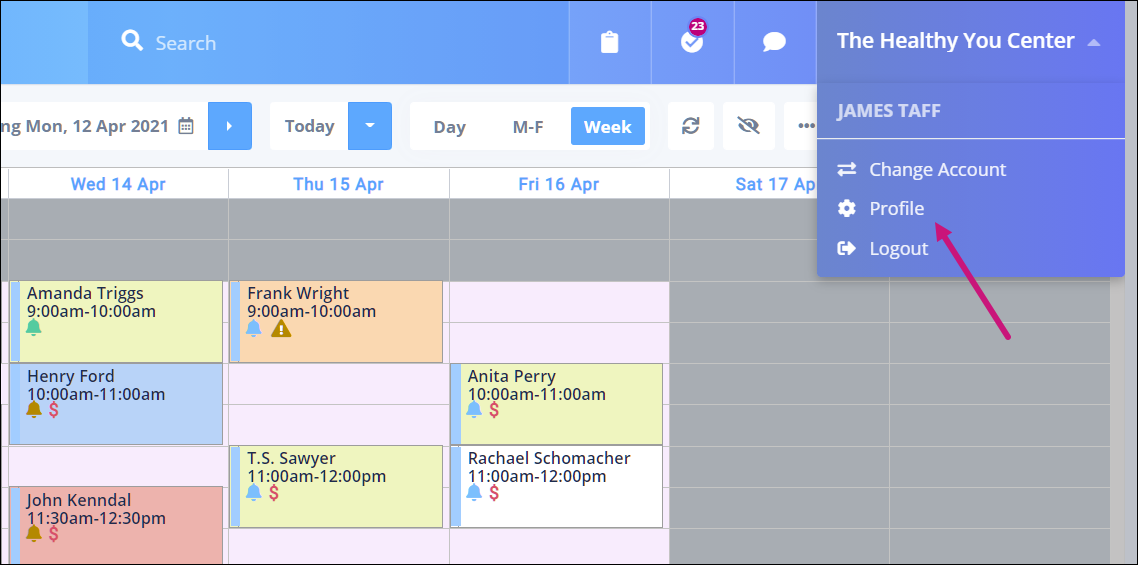
- On the top-right corner of your dashboard, click on your name. In the pop-up menu that appears, click on Profile.
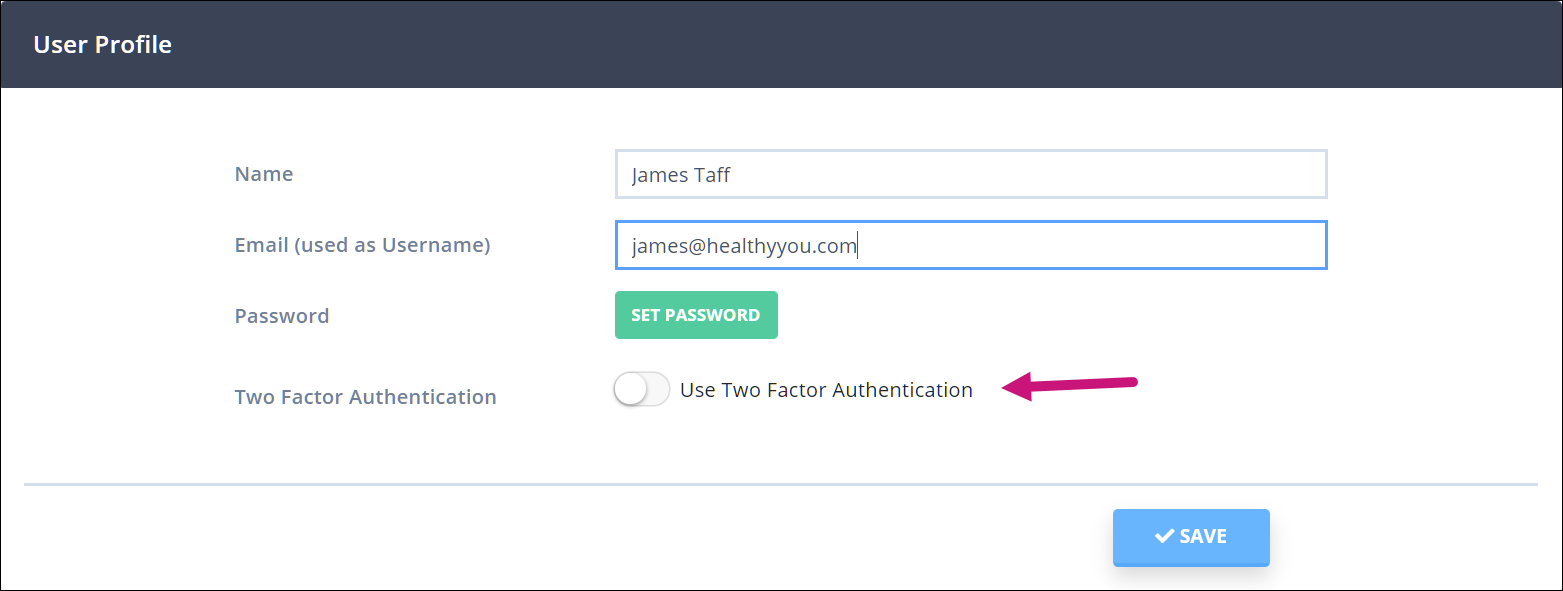
- Toggle the switch that says Use Two Factor Authentication.
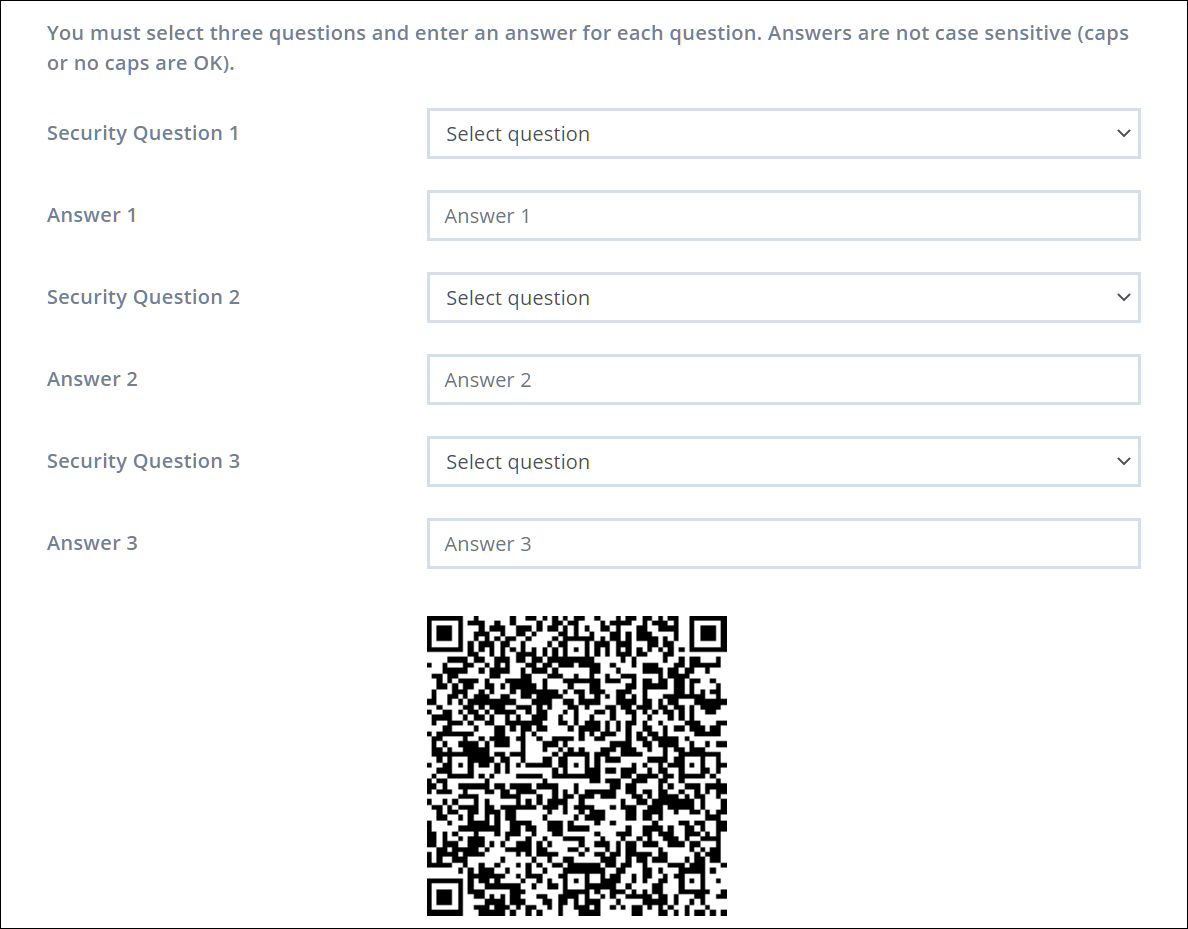
- A security question form will appear (if it doesn’t, click on Configure Two Factor Authentication). Here, choose three security questions and memorize the answers for them.
Note:
Please make sure the answers for your security questions are spelt correctly. If there are any typos/incorrect words, you won't be able to access your account. If this happens, you'll have to ask your account's administrator/master user to do the following:
- Step 1: Go to Setup → Users and click on your username.
- Step 2: Turn off the Require Two Factor Authentication switch and click Save.
- Step 3: Re-enable the Require Two Factor Authentication and click Save.
This will reset your security questions and you'll be able to log in again.
Once done, you’ll be asked to enter an authorization code. To do so, follow these steps:
Microsoft Authenticator;
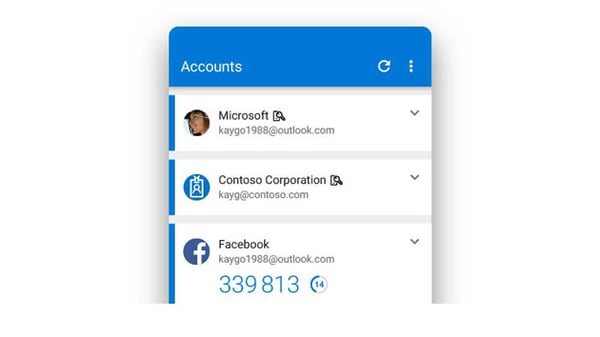
- Click on the + button and click on “Other Account”. Your phone’s camera will open up. Use it to scan the QR code on your Power Diary account.
- After the QR code is scanned, a six-digit code will appear. Copy and paste it quickly under the QR code and click Save.