PLEASE NOTE THAT THIS WILL NOT SEND THE FAMILIES EMAILS.
THAT WILL NEED TO BE DONE SEPERATELY.
Open Teacher Kiosk > Teachers > Notifications
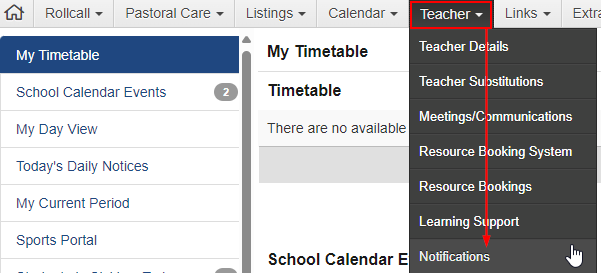
Click Add Notification

In Select Mode, select Student Mode Search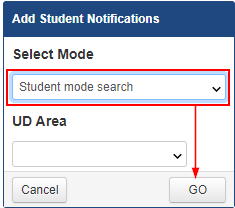
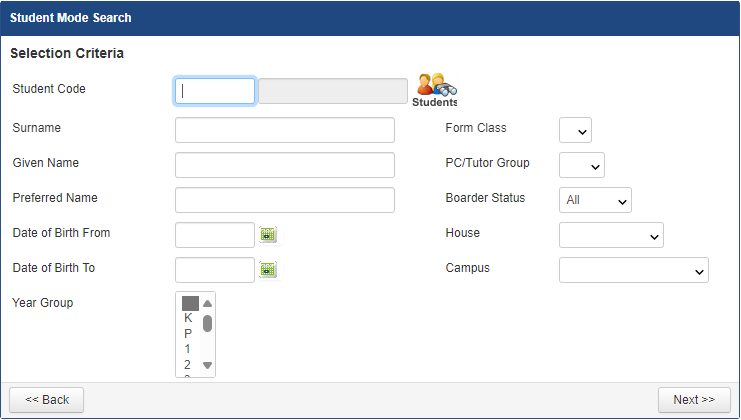
Leave all fields blank
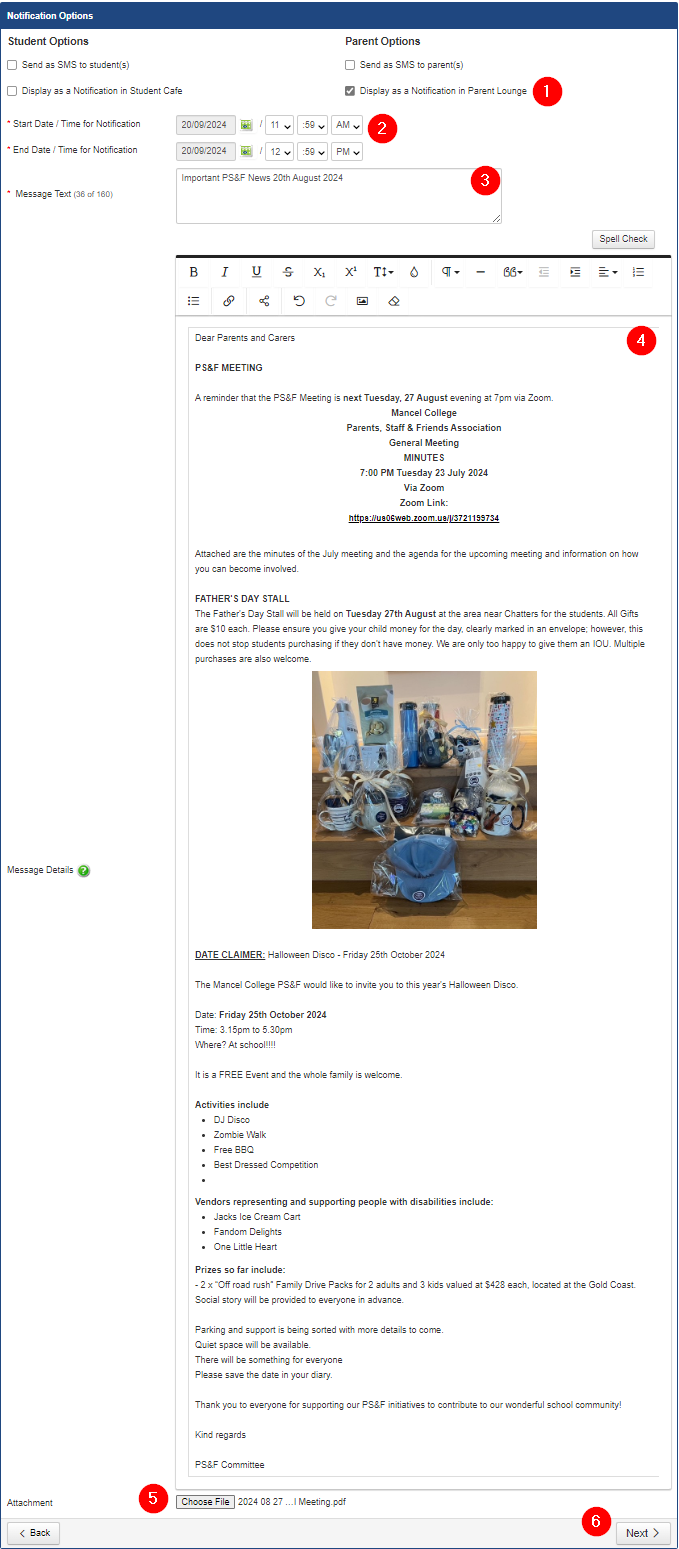
- Make sure you click Display as Notification Parent Lounge. THIS is what sends this message as a Notification to the families.
- If you want this message to go out at a set time, you can schedule it to post them otherwise it will go out right away.
- Add the message subject
- Format your message
- You can only add 1 attachment.
- Press next to progress
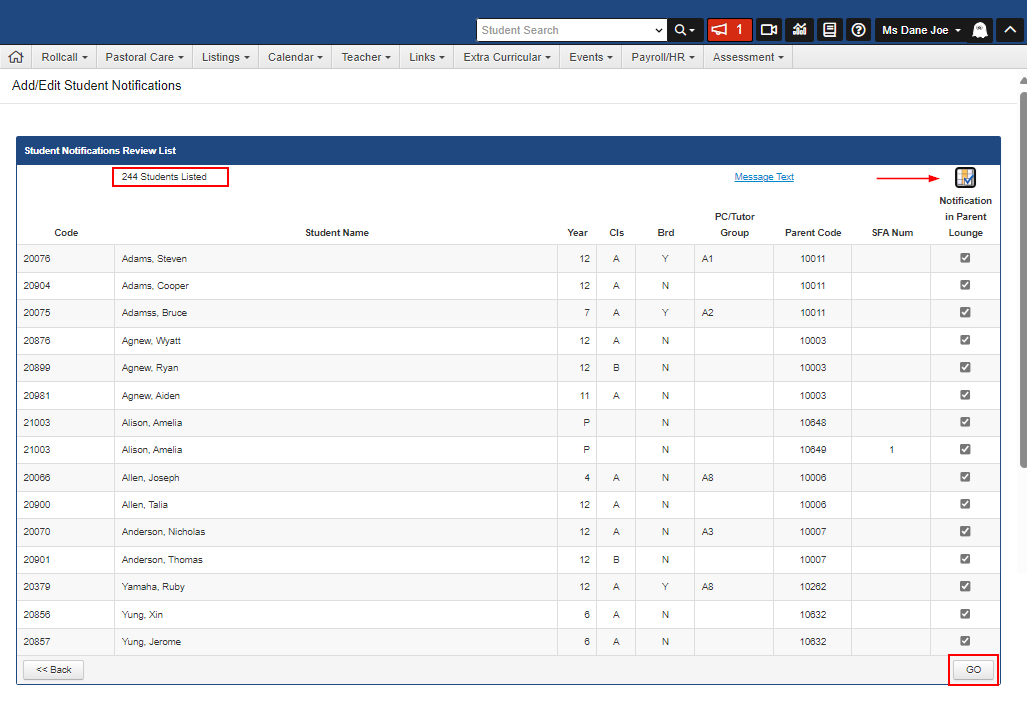
This should list all the students.
Make sure all students are ticked, if you want it sent to all families.
Press Go
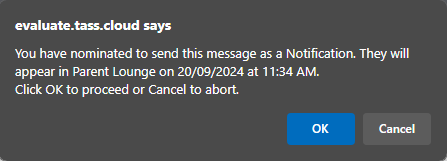
This last pop up will appear just before its scheduled or sent.
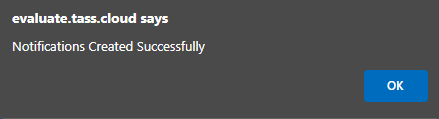
Once sent.
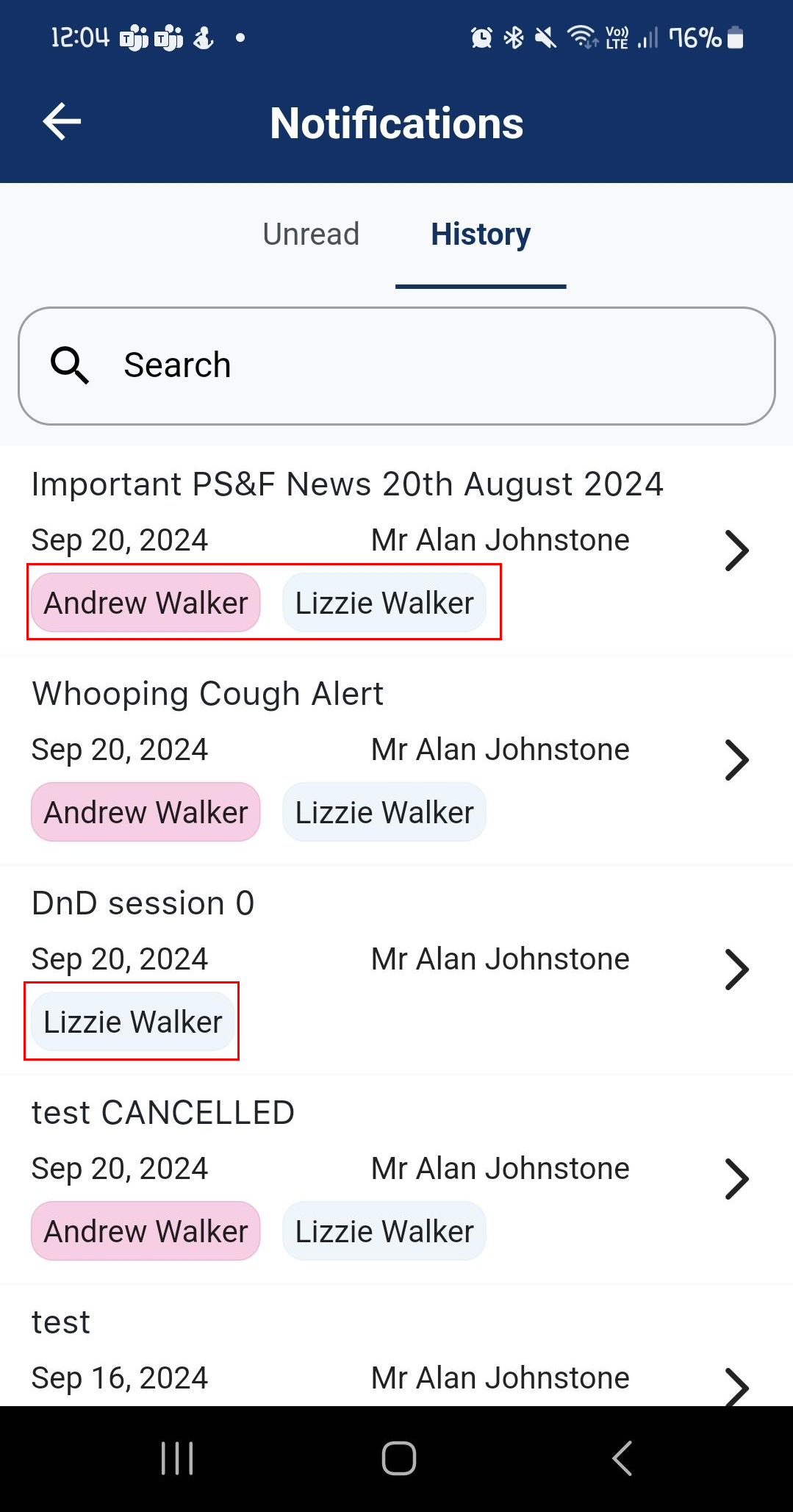
This is how the parents see the notification:
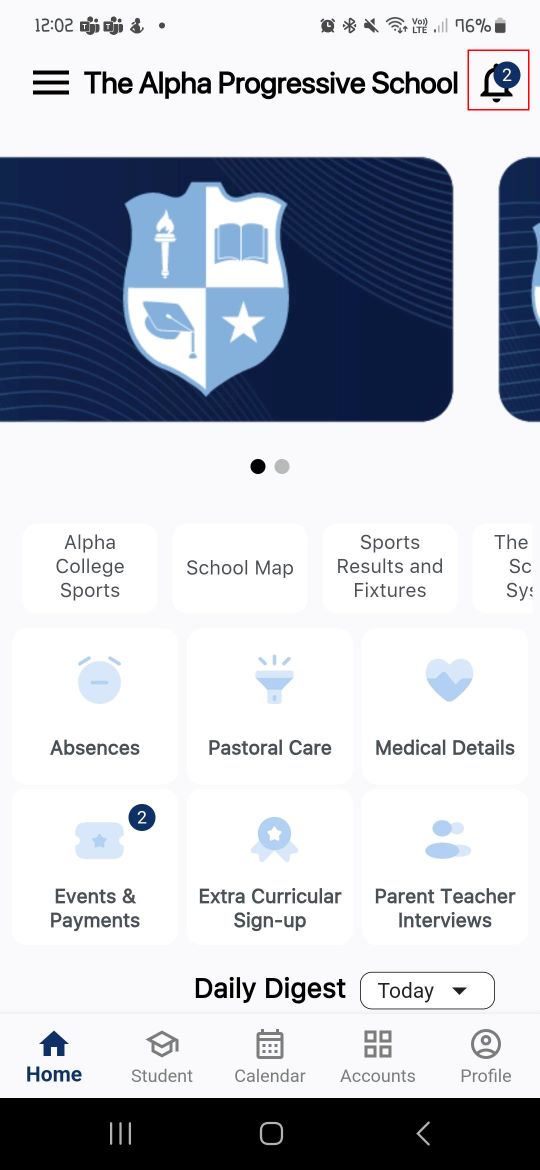
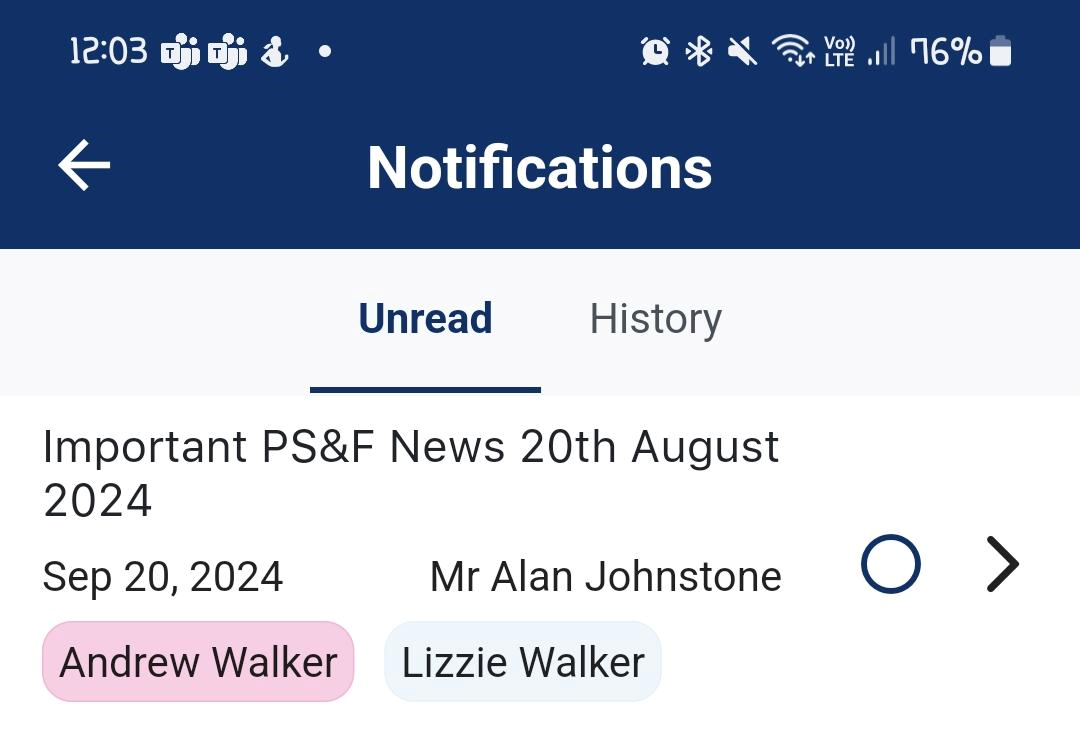
This is how it looks on the phone. The message appears to be wider than the screen, however, the app user can scroll up down, left and right to read the whole message.
It will stay in the notifications screen until it is acknowledged.
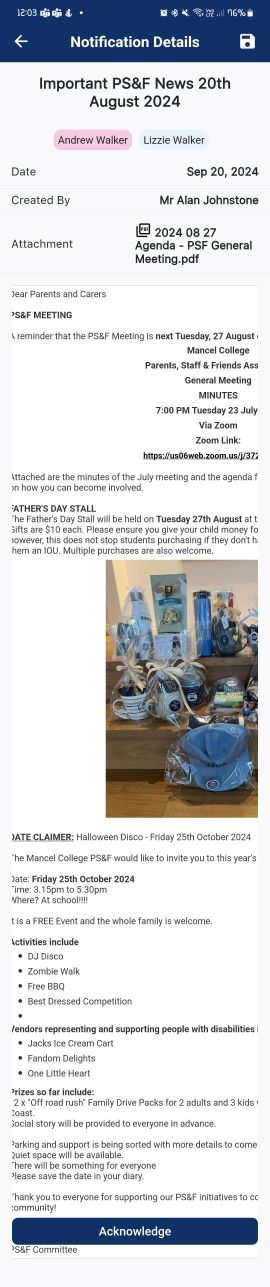
And then it will appear in the History tab, for the families to come back to later.
You can see the names of the students this notification relates to.