PLEASE NOTE THAT THIS WILL NOT SEND THE FAMILIES EMAILS.
THAT WILL NEED TO BE DONE SEPERATELY.
Can be done a few different ways:
Through Groups:
These groups are a cluster of students who belong to a club, event or activity that doesn't require any form of permission or payment. These groups can be made quickly without the need of permission, medical concerns, cost requirements and mainly, event approval.
Click here to go straight to the section for creating notifications with Groups.
Through Events/Payment:
These groups are premade through Events > Events and Payment. This is handy for clubs, excisions and camps.
Typically, this is made due to the activity requiring Parental consent/invoices a fee/and principal approval.
Click here to go straight to the section for creating notifications with Events/Payments.
Creating Notifications with Groups
Currently this school has no groups, however, the steps make one can be found HERE.
Once we have made the group, click on Groups mode Search.
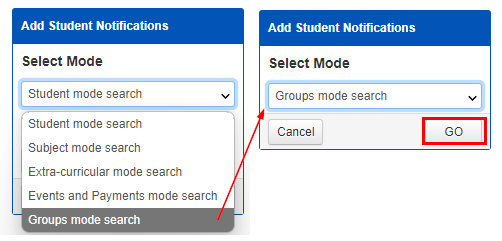
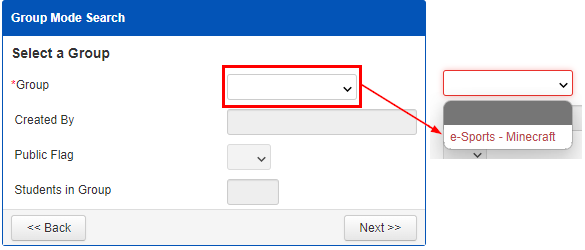
It will open a new window like below, click on the dropdown menu that will allow you to select any premade groups.
Click Next.
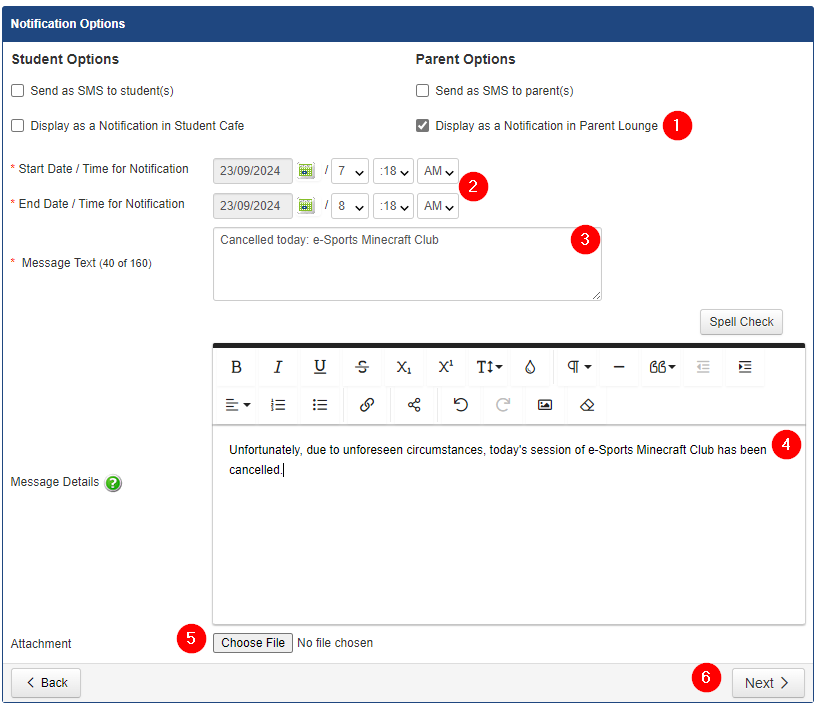
It will take you to this screen. This is where you can create and format the message that will go out to the families of the selected groups.
- Make sure you click Display as Notification Parent Lounge. THIS is what sends this message as a Notification to the families.
- If you want this message to go out at a set time, you can schedule it to post them otherwise it will go out right away.
- Add the message subject
- Format your message
- You can only add 1 attachment.
- Press next to progress
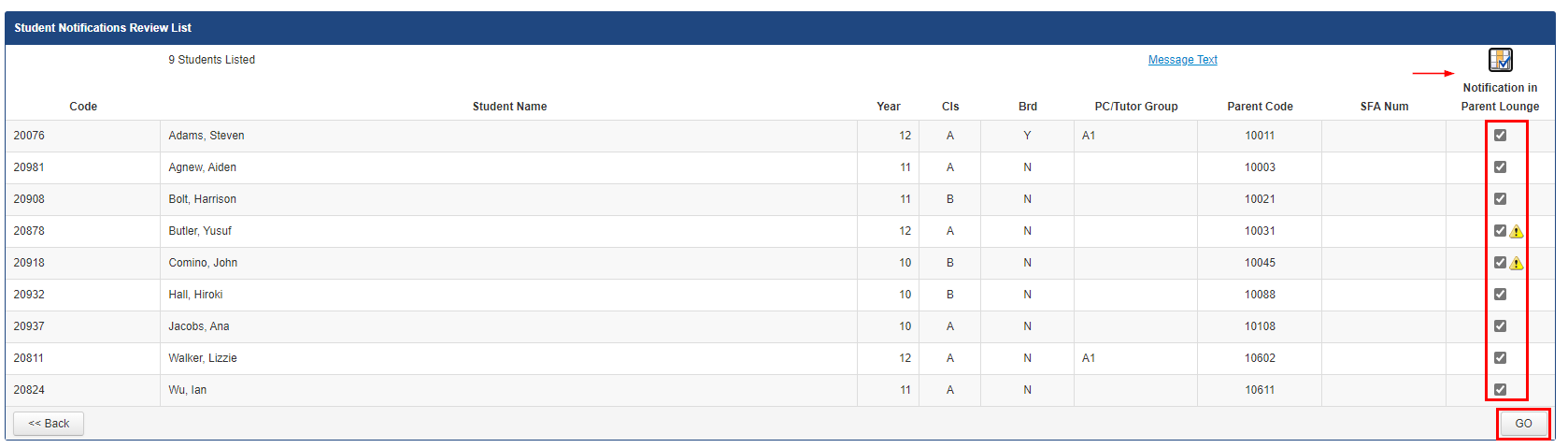
You will be taken to this screen where you can confirm who this will be sent to. You can toggle all or none of the families ticked. Once you are happy, click Go.
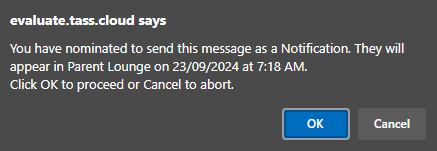
You will see this message that will advise that it will be posted.
If you did not schedule a future date for this message to be sent, it will send it immediately.
You will be informed that it was successfully sent/scheduled. You will be able to see it appear in the notification list.

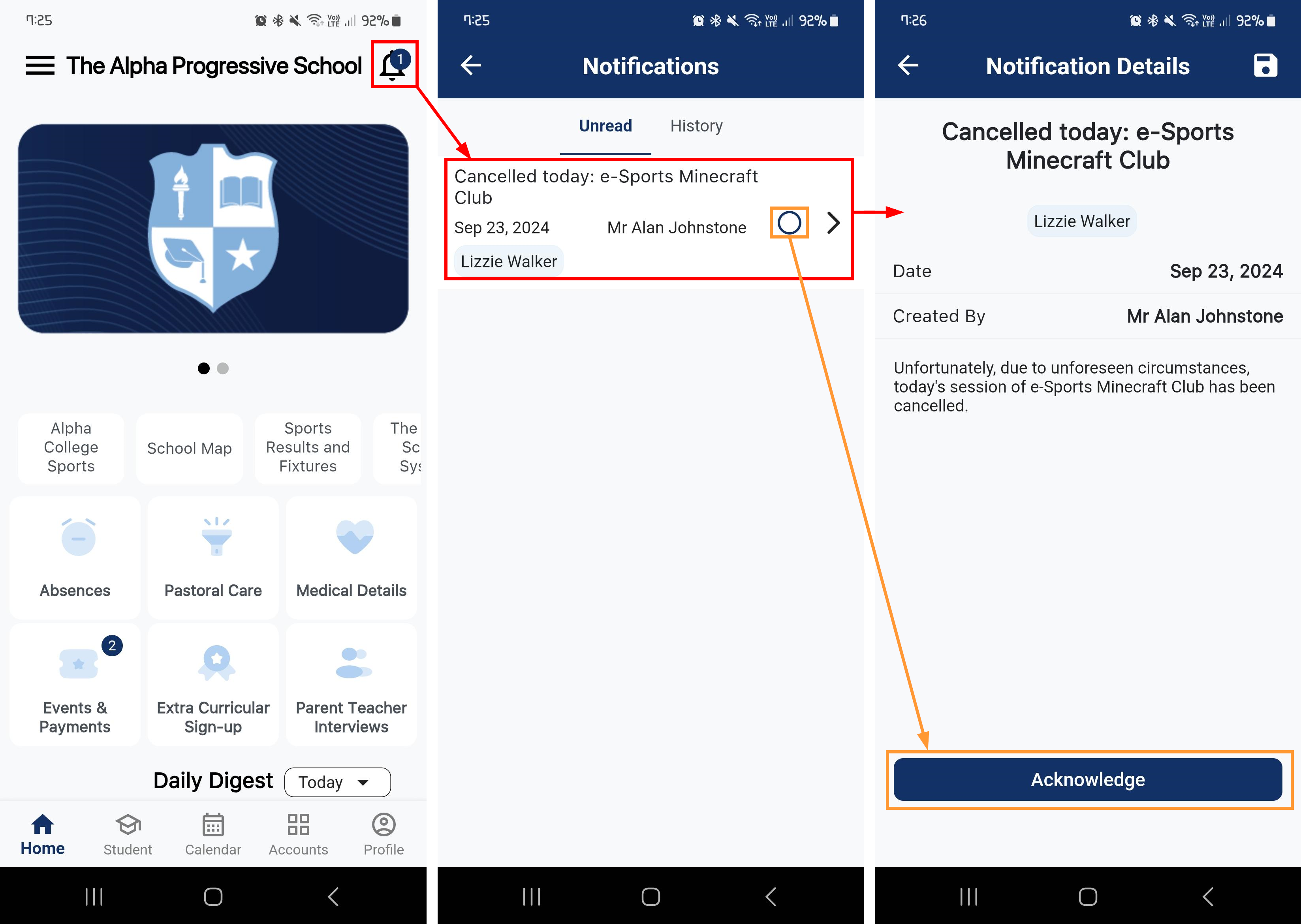
This is how it will appear on the parents Parent Orbit app.
It will appear as a notification on the of Bell.
The most recent notification will appear at the top of the Unread list.
The message will stay in the unread list until ticked off, or "acknowledged" in the message itself.
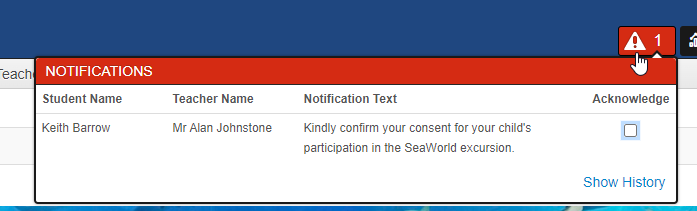
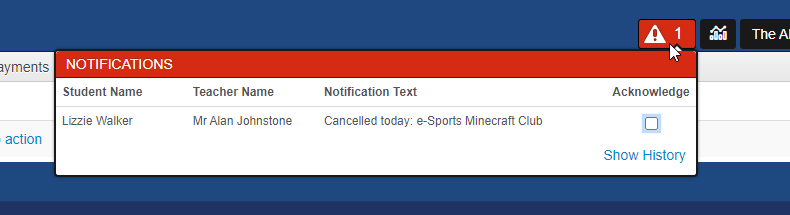
Alternatively, this is how it will appear for parents who still only use parent lounge.
Creating Notifications with Events/Payments
Teacher > Notification
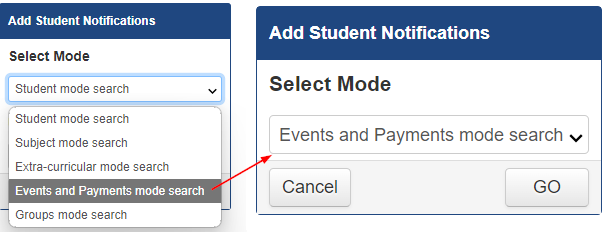
Let's send it to families who have not yet provided consent, update the criteria to send to families who have Not Accepted.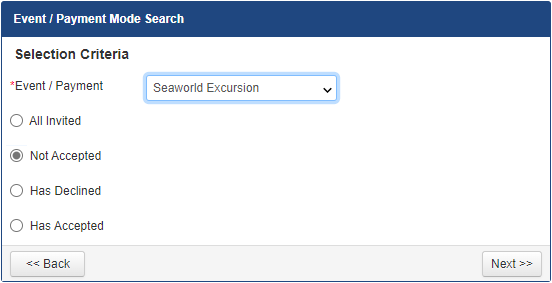
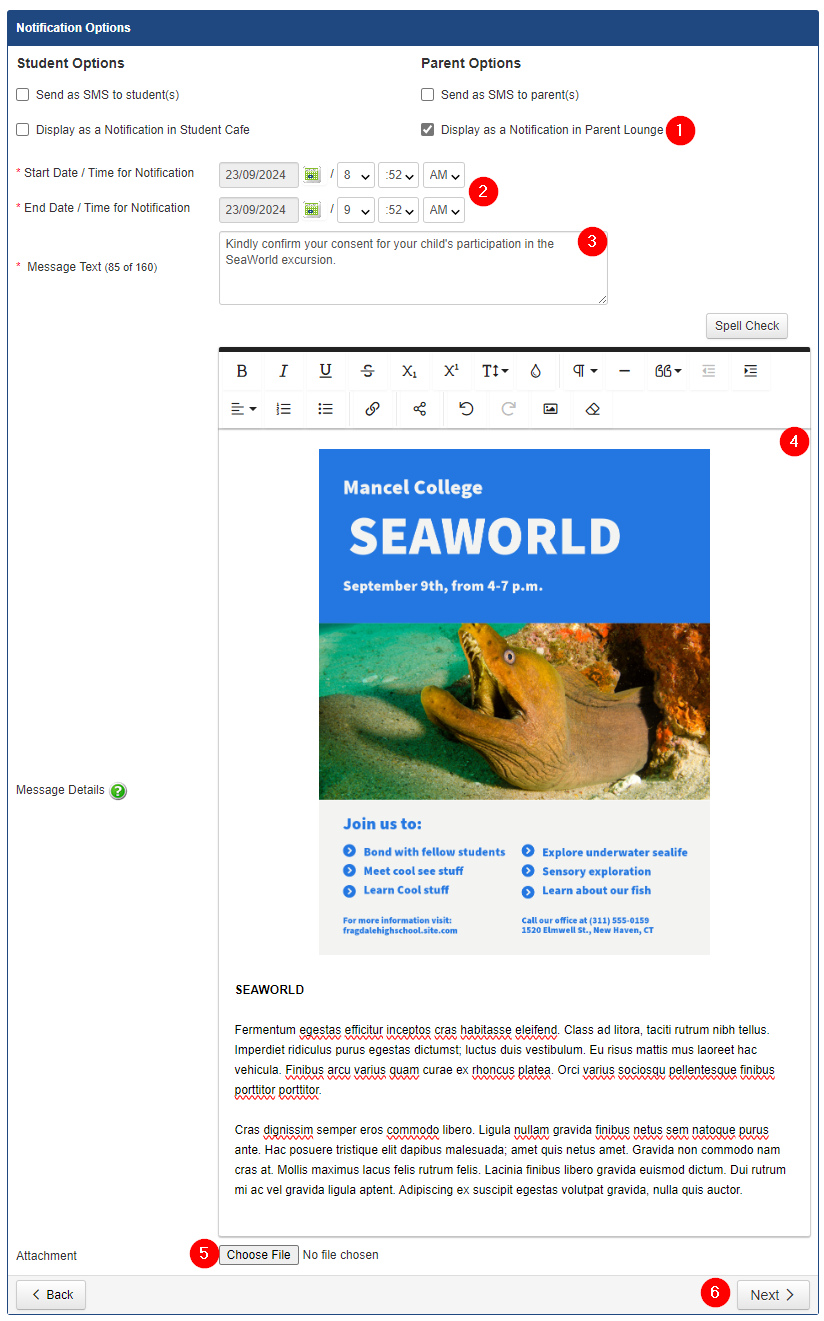
Here is where you can format the message.
- Make sure you click Display as Notification Parent Lounge. THIS is what sends this message as a Notification to the families.
- If you want this message to go out at a set time, you can schedule it to post them otherwise it will go out right away.
- Add the message subject
- Format your message, you can add images.
- You can only add 1 attachment
- Press next to progress
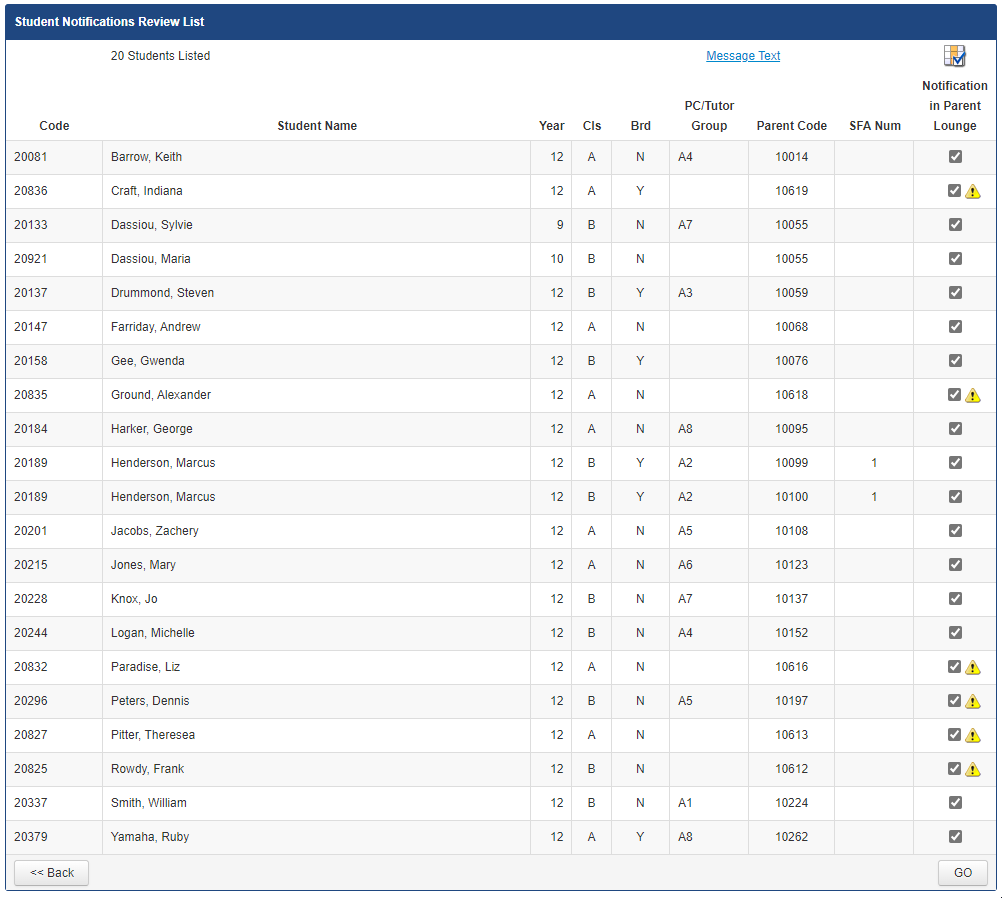
If you are happy the selected students, press GO. This will send a message to their families.
You will see this message that will advise that it will be posted.
If you did not schedule a future date for this message to be sent, it will send it immediately.
You will be informed that it was successfully sent/scheduled. You will be able to see it appear in the notification list.

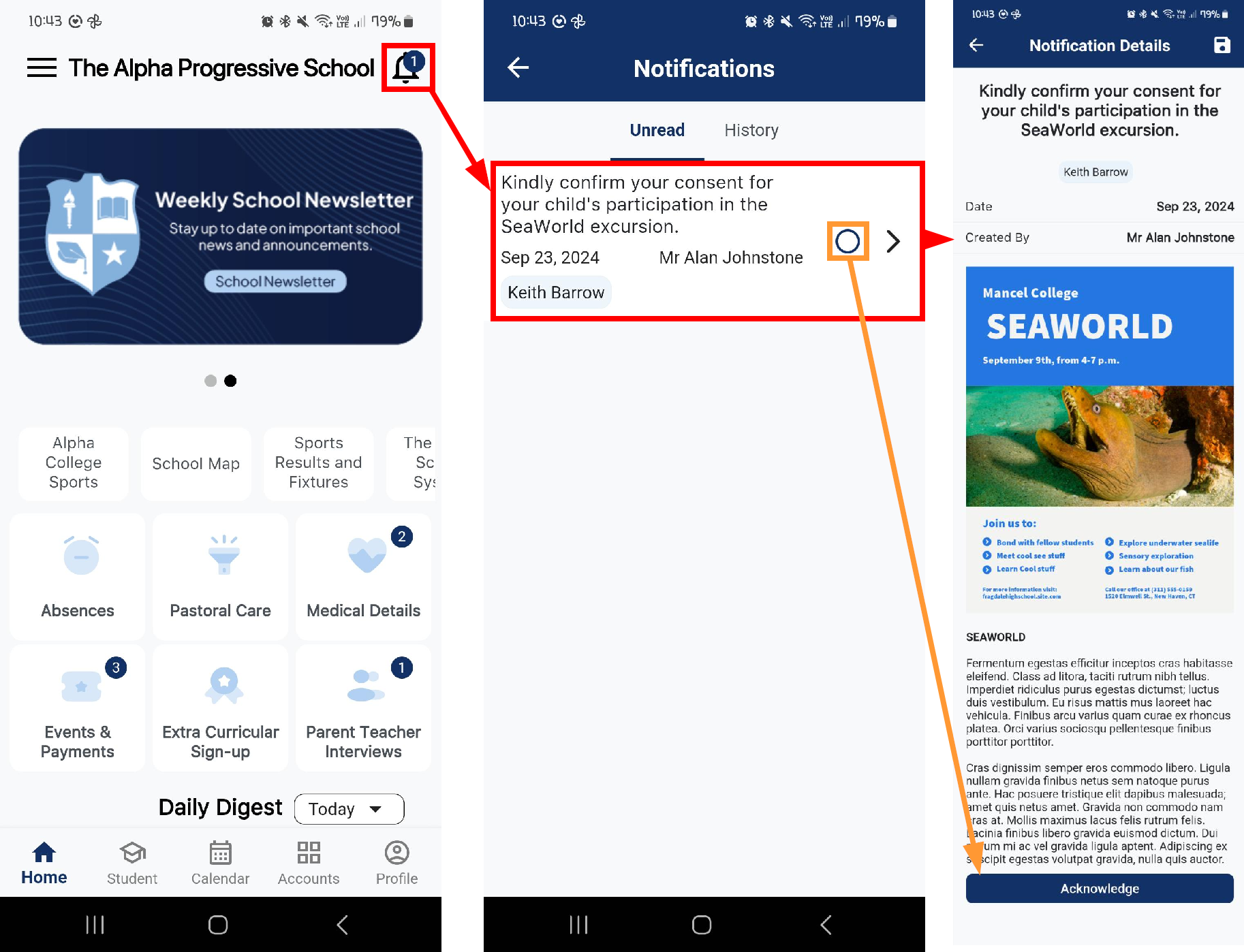
This is how it will appear on the parents Parent Orbit app.
It will appear as a notification on the of Bell.
The most recent notification will appear at the top of the Unread list.
The message will stay in the unread list until ticked off, or "acknowledged" in the message itself.
Alternatively, this is how it will appear for parents who still only use parent lounge.