
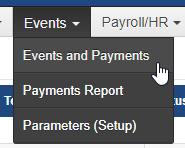
Teacher Kiosk > Events > Events and Payments
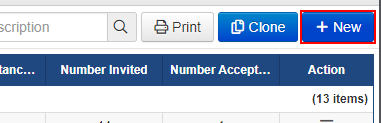
Click +New
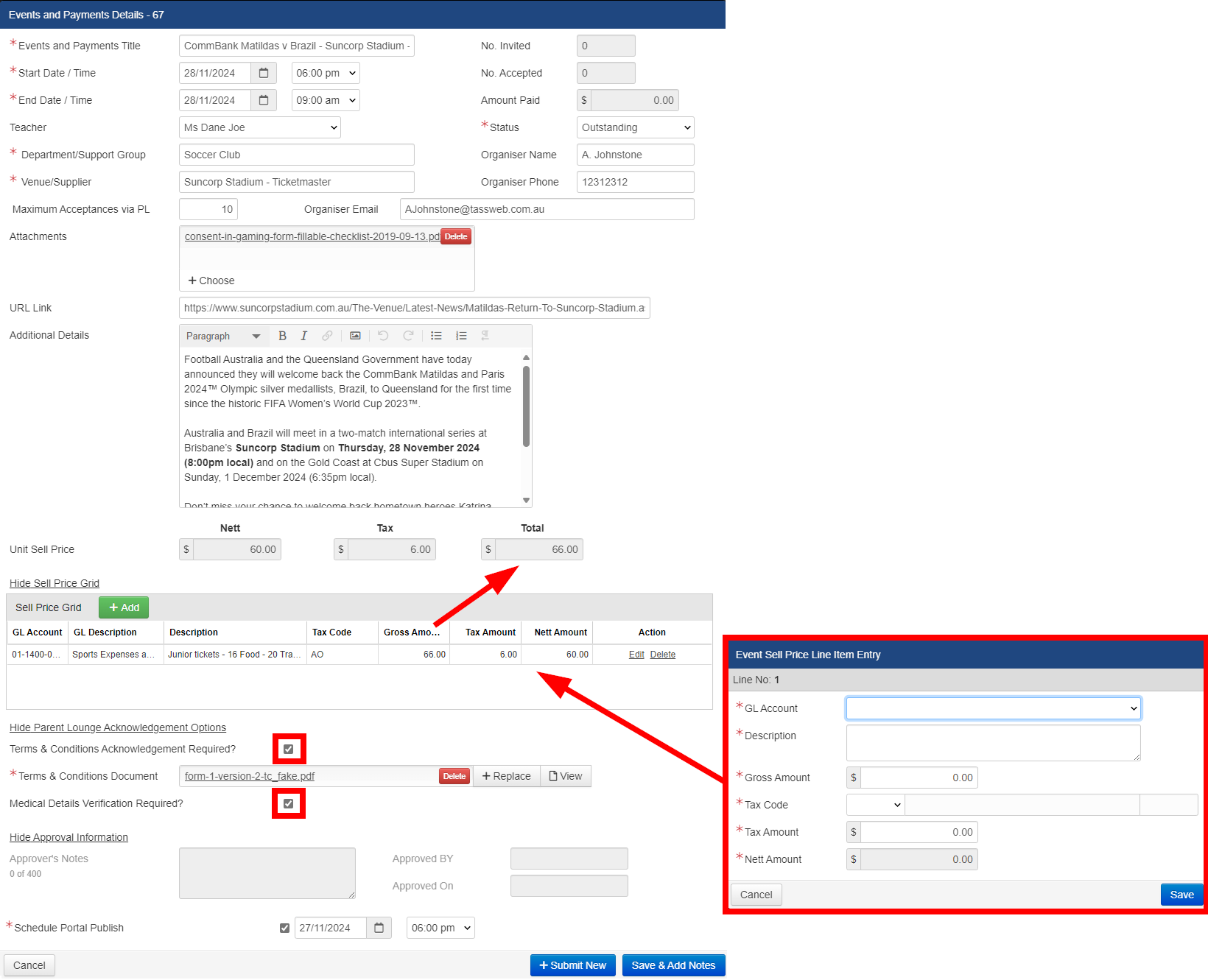
Fill in the necessary fields. Don't forget to add cost involved, and any terms and conditions, expectations of behavior, Etc.
Once completed, press "Save and Add Notes"
The group event has been created; however, you need to invite students.

You can do that 2 ways. In the drop menu, you can select Bulk Assign, or Students
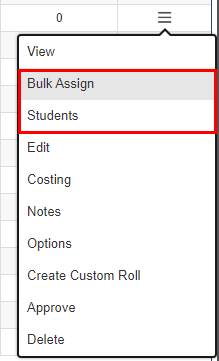
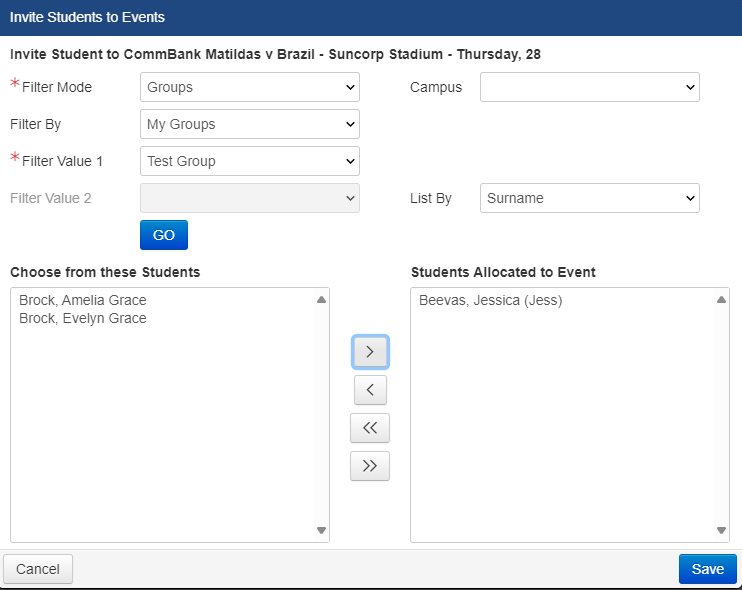
Bulk Assign - can be done with premade groups/ or classes. Just adjust the filters.
When you have added all the students you want to invite, press save.
Students - Allows you to manual add each student with their details.
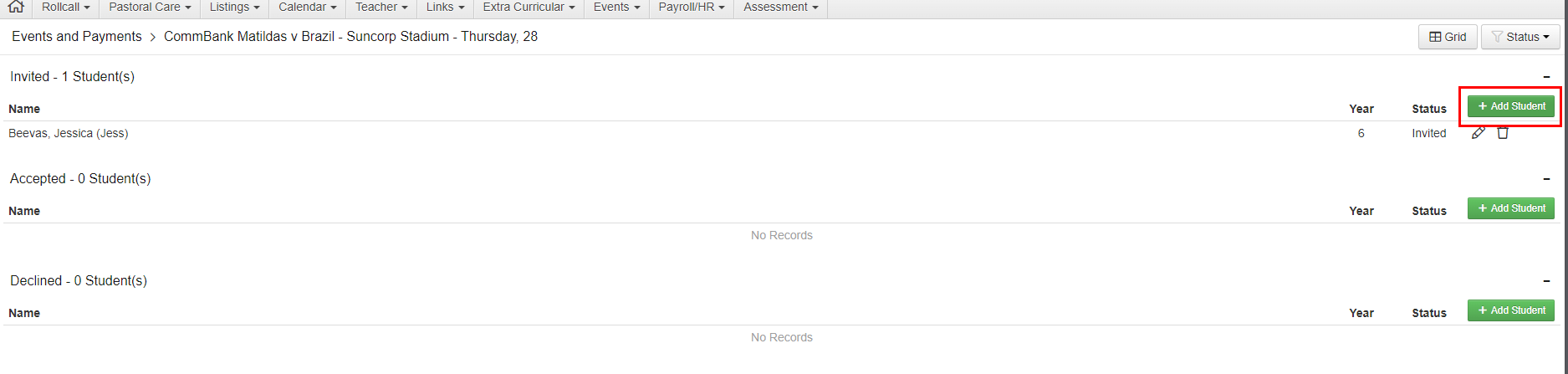
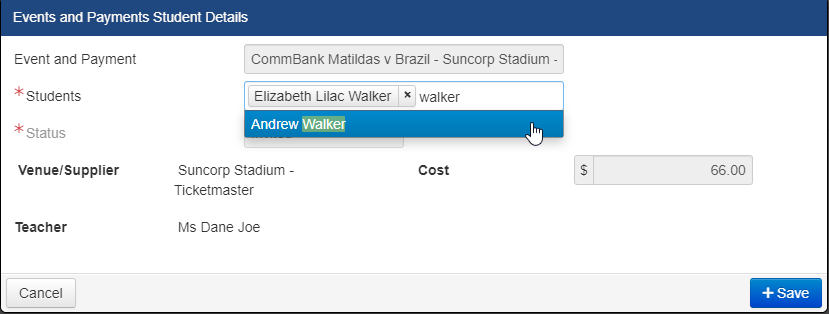
You will need to have a list of the student's name or Tass number on hand bring them up in the search.
When you have added all the students you want to invite, press save.
Once the event is created and students invited, this will need to be approved.

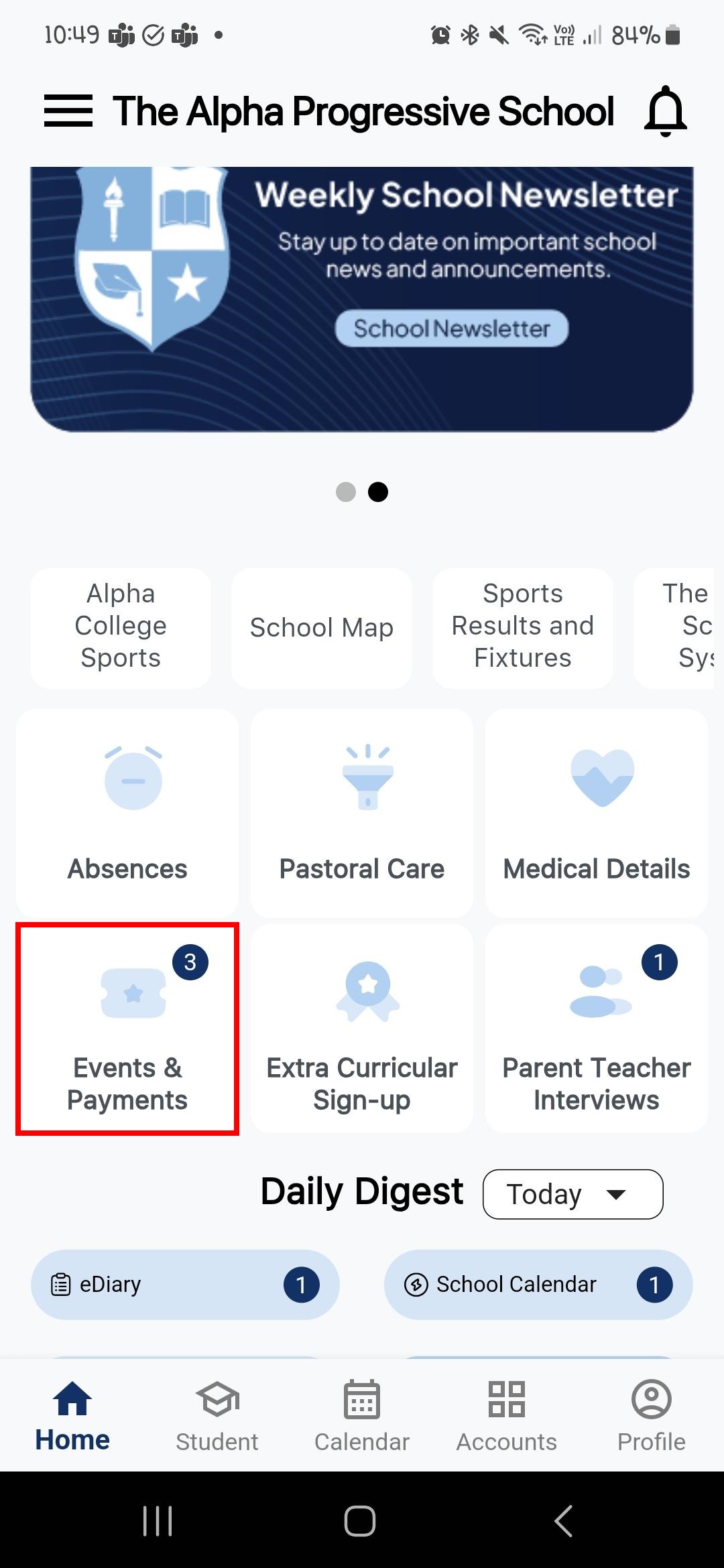
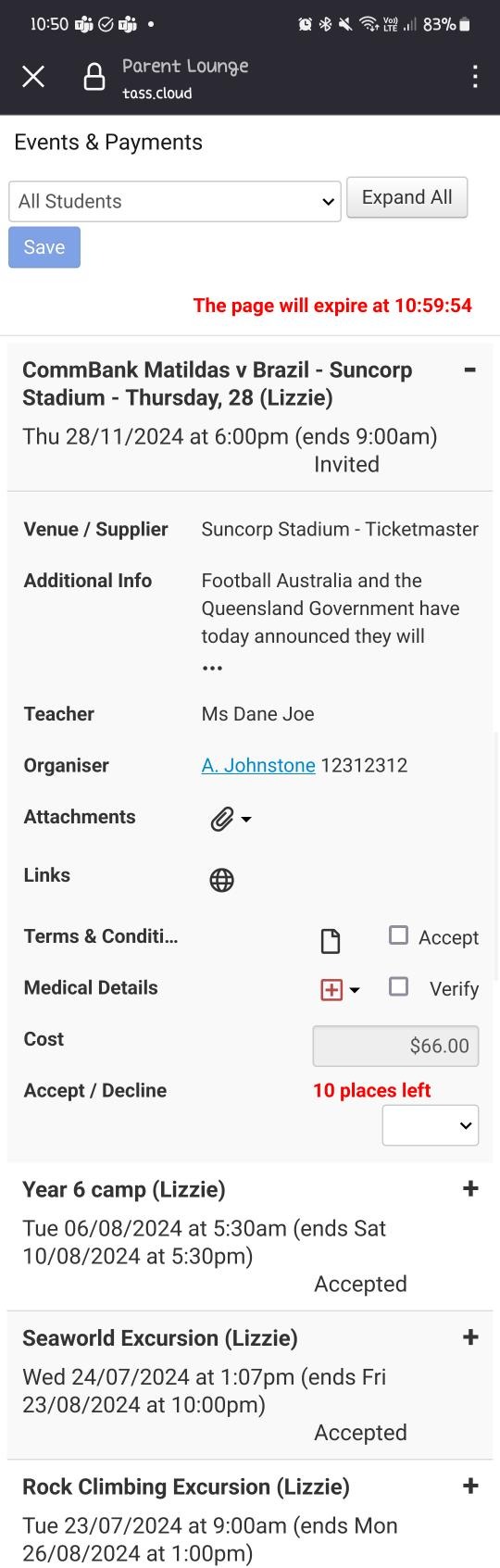
Once approved, it will appear on the Parent Orbit app:
 |  |