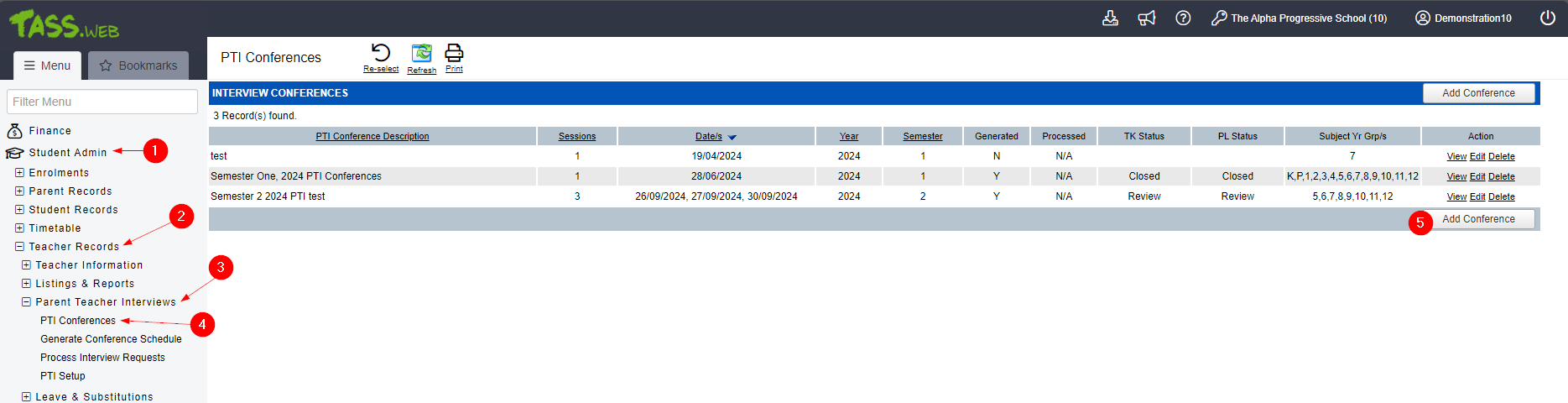
On Tass.Web:
Student Admin > Teacher Records > Parent Teacher Interviews > PTI Conferences > Add Conference
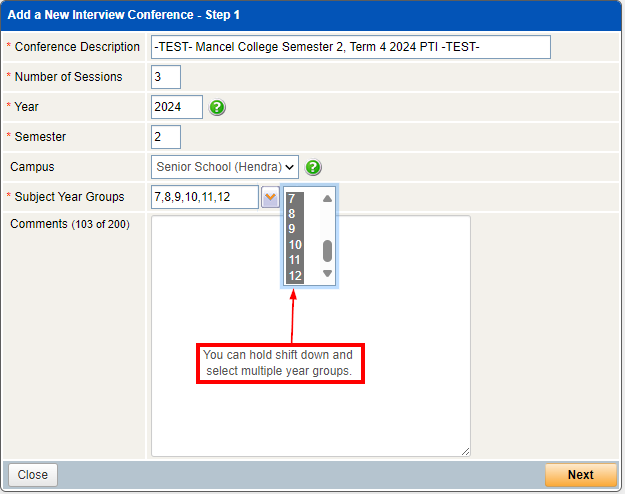
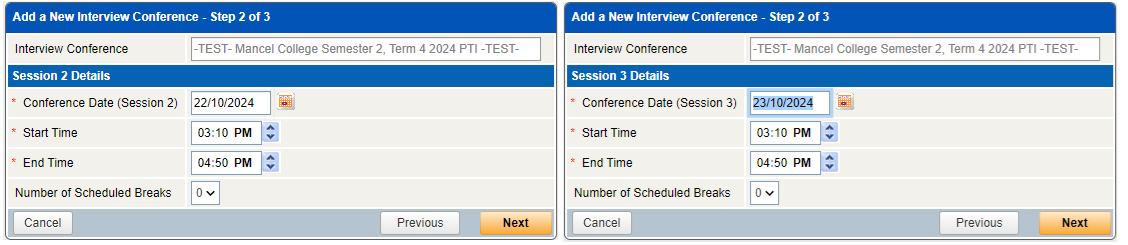
Add the name and how many sessions you want. Sessions are blocked out times for interviews.
Example 1:
Session1 - 7am - 8:30am Monday Session2 - 3:30am - 4pm Monday | Session3 - 7am - 8:30am Tuesday Session4 - 3:30am - 4pm Tuesday | Session3 - 7am - 8:30am Wednesday Session4 - 3:30am - 4pm Wednesday |
Example 2:
Session1 - 3:10pm - 4:503am Monday | Session2 - 3:10pm - 4:503am Tuesday | Session3 - 3:10pm - 4:503am Wednesday |
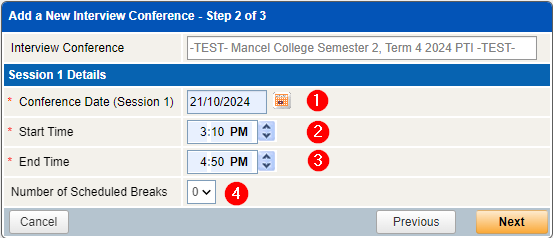
- Confirm the date the PTI session 1 will commence
- The start time
- End time
- Any breaks, once complete press Next.
Do the same for all sessions
Appointment Allocation Method, we recommend the 3rd options.
For more detailed information regarding each option, click here.
- Confirm if you want the ability for split appointments. We do not recommend this
- Give teachers control of their availability for the day of the PTI
- Give teachers control of their meetings, if the need to change anything around
- Set up a time frame to allow teachers to try and booking certain time slot for certain families/students
- Provide the option for families to book in slots with the same teacher who teaches multiple subjects
- Designate the window of opportunity for parents to book in a time
- Designate the window of opportunity for parents review their booking
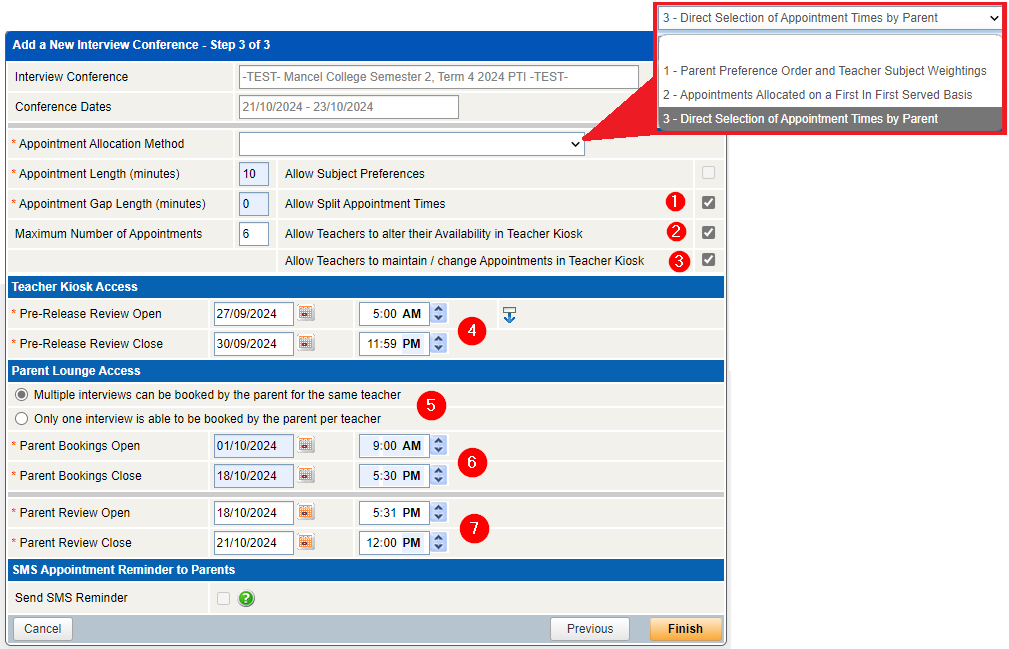
The Teacher Pre-Release Review times, Parent Booking times and the Parent Review times MUST be staggered. No overlap can happen whatsoever, you cannot progress.
| Example of a conference setup timeline IF the PTI were to start on the 20th of Jan 2024 | |||||
| Teacher Pre-Release Review Open & Close time | |||||
| Open | Close | Parent Bookings Open & Close time | |||
| 01/01/24 at 5am | 07/01/24 at 11.59pm | Open | Close | Parent Review Open & Close time | |
| 08/01/24 at 5am | 15/01/24 at 5:30pm | Open | Close | ||
| 16/01/2024 at 5:31pm | 18/01/2024 at 11:59pm | ||||
Once you are satisfied with the setup, press finish.
You will see the new PTI Conference populate in the list.

On the side menu, click on generate Conference Schedule so we can populate the booking slots for parents.
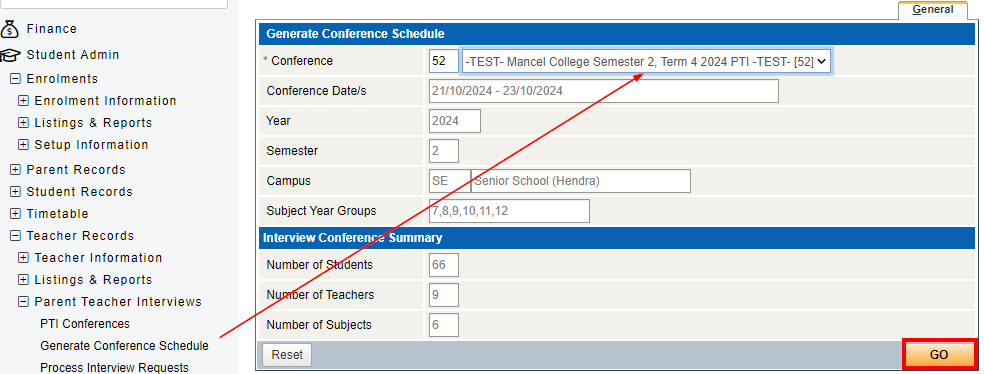
Go back to the PTI Conference. Locate your new conference and do ahead and edit it.

Once the Schedule has been generated, you will now be able to assign rooms to each teacher.
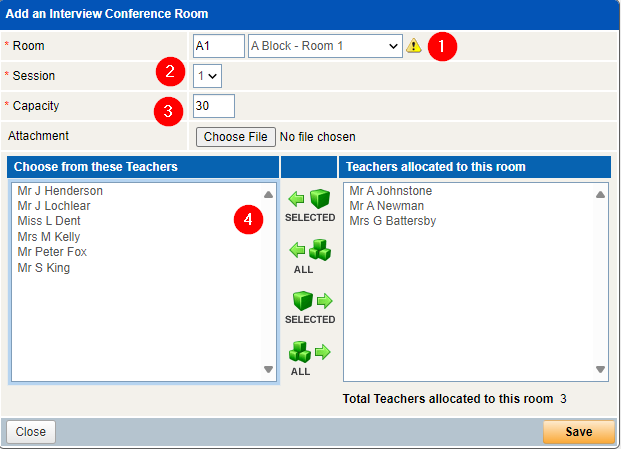
Select New Room.

- Select a room from the dropdown menu
- Confirm what session this is for
- Confirm how many people can fit in this room
- Then allocate the Teachers you want to assign to this room for the interviews, then press save.
- You will be prompted for each session.
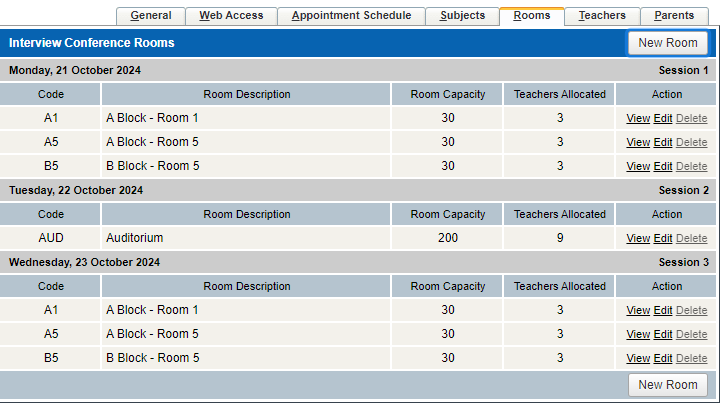
Once all teachers have been allocated a room for each session, you will see something similar to the bellow.
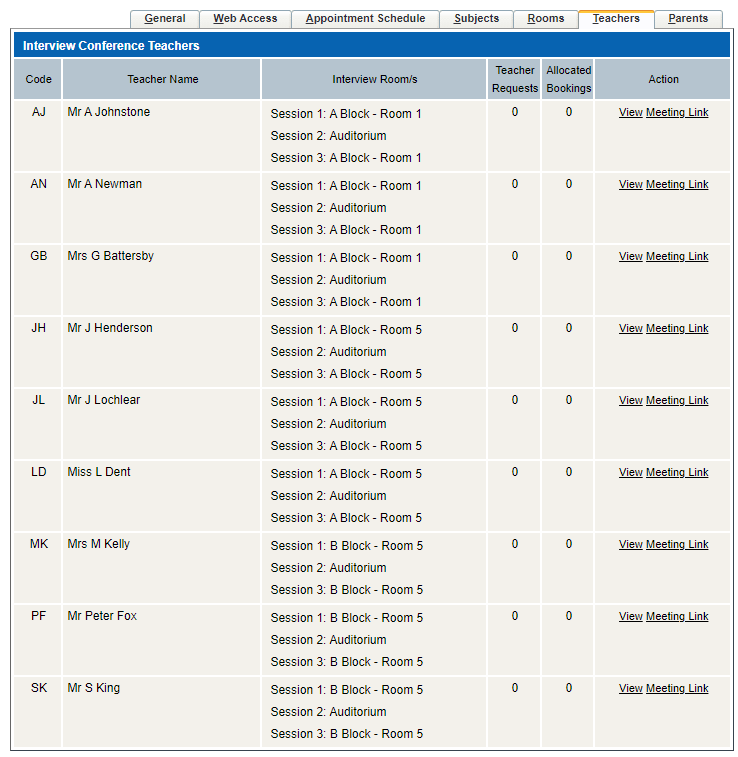
Teachers Tab
You will see a breakdown of where all the teachers have been allocated for each session. This grid will also show any allocated slots that have been booked by families. Remote session links can also be added here.
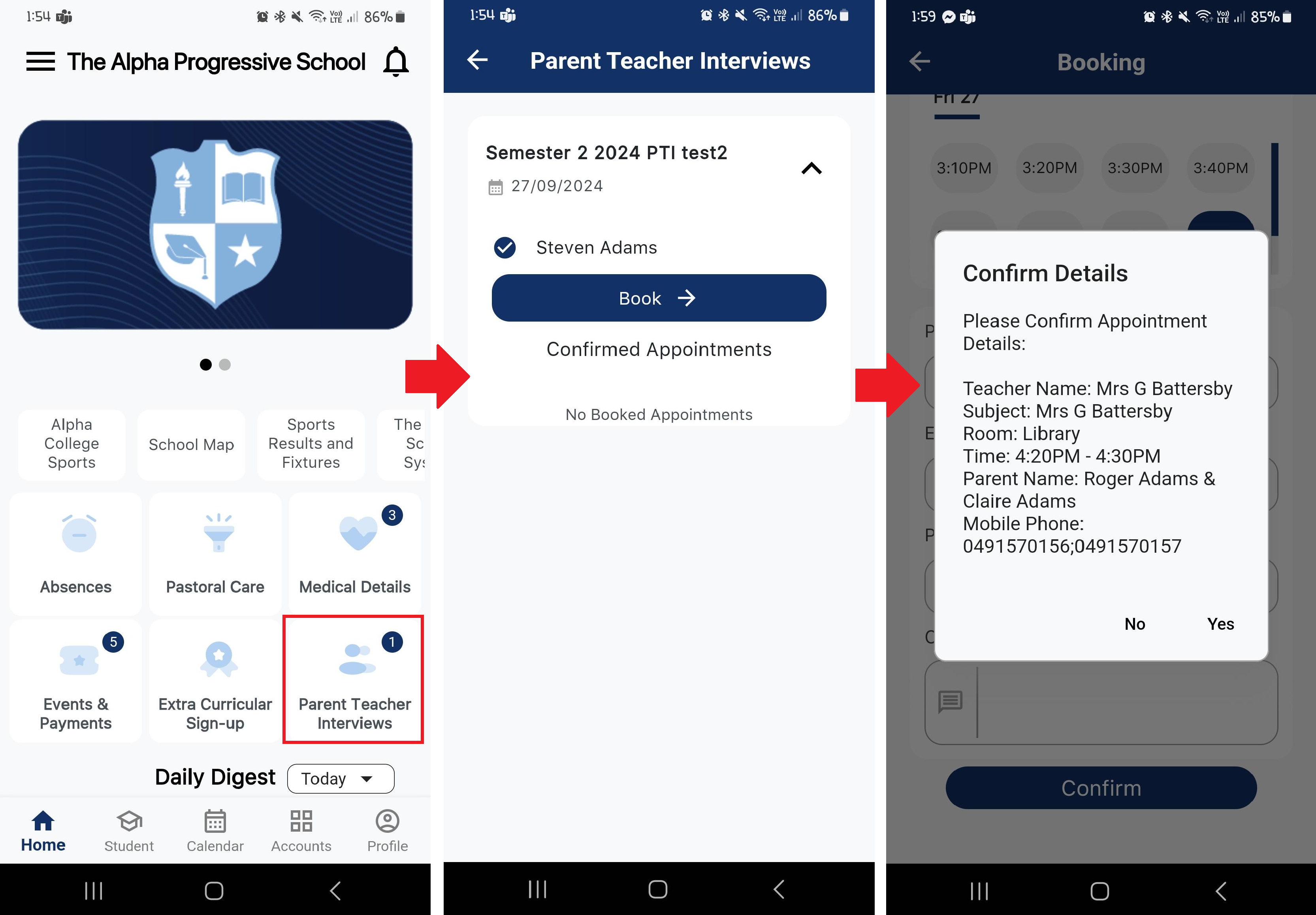
This is how the families will view it on the Parent Orbit App.