
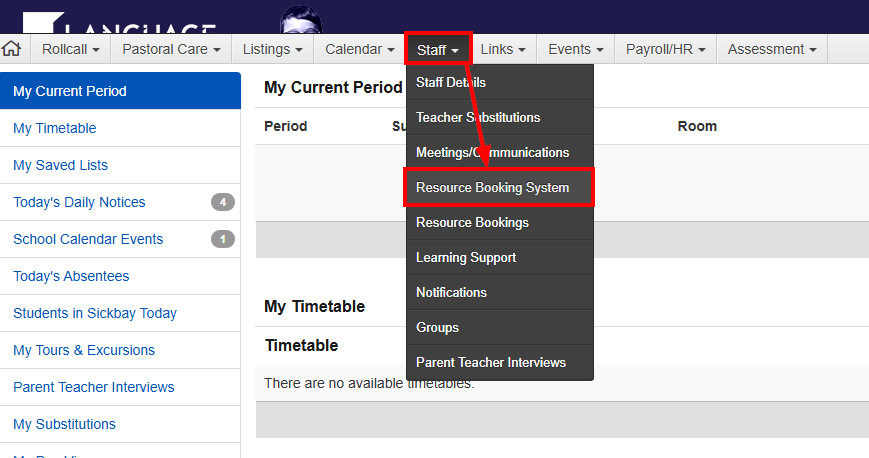
In the Staff drop down menu, select Resource Booking System.
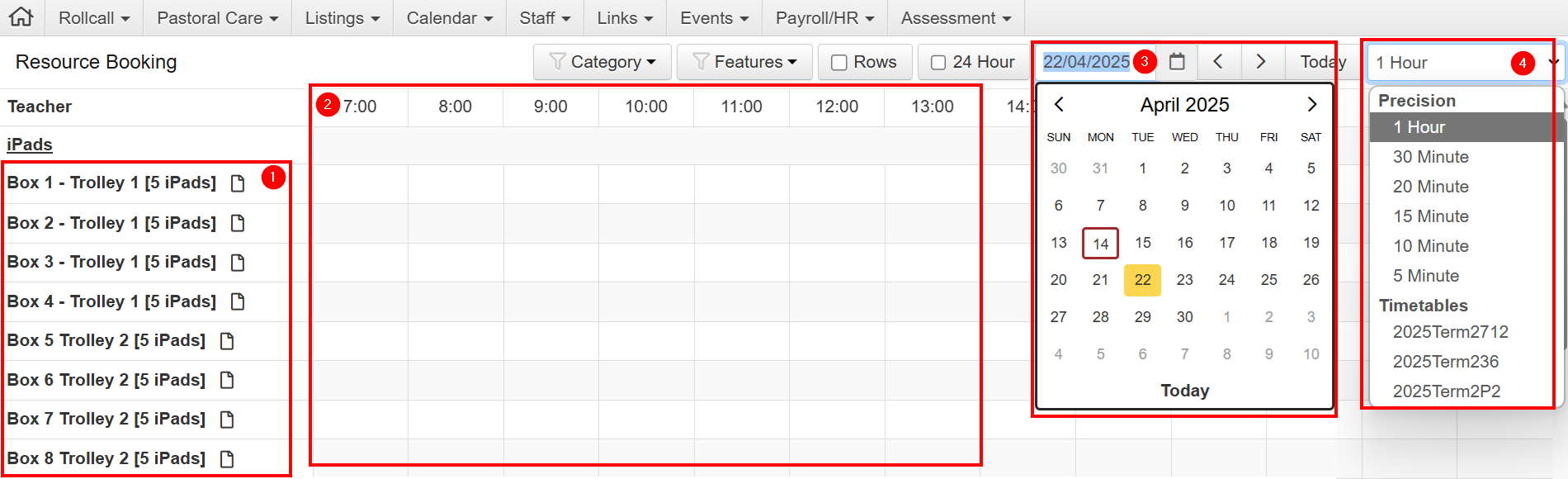
- Each box contains 5 iPads, except Box 9, were you need can book individual iPads.
- Your Time slot of when you want to reserve the iPads
- Date of desired booking.
- Time break down. so you can book in 5 mins increments.
If you are making a once off booking, just select your time bracket, and hit save.
Feel free to add any details you feel is needed.
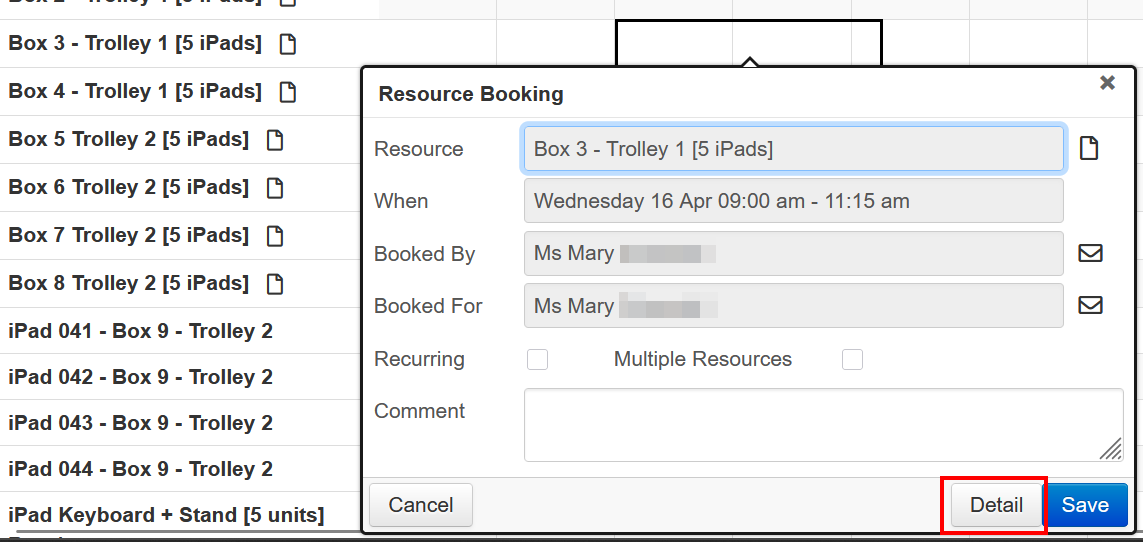
If you want to make it recurring, click on Detail.
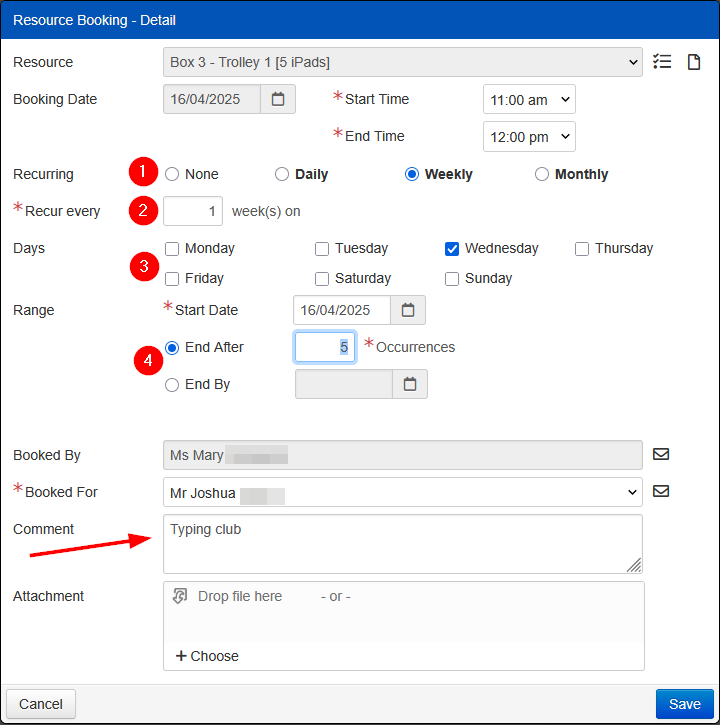
- Confirm if its Daily/Weekly/Monthly
- The frequency
- The days (if weekly)
- When this recurring booking will end.
Please remember to add reason for this recurring booking.
If you want to book more than multiple resources at a time
Click on the list icon next to the resource you are booking.
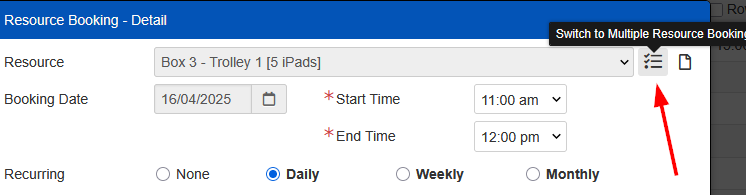
Initially, you will only see what you have currently selected.
Click on the teal box that says Find Available Resources.
This will show you all available resources for your desired booking time.
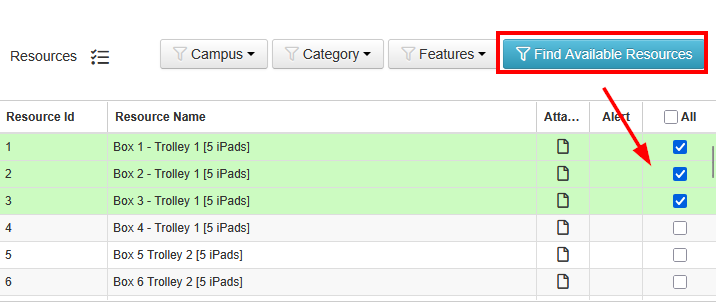
Fill out the rest of the form as per normal and press Save.
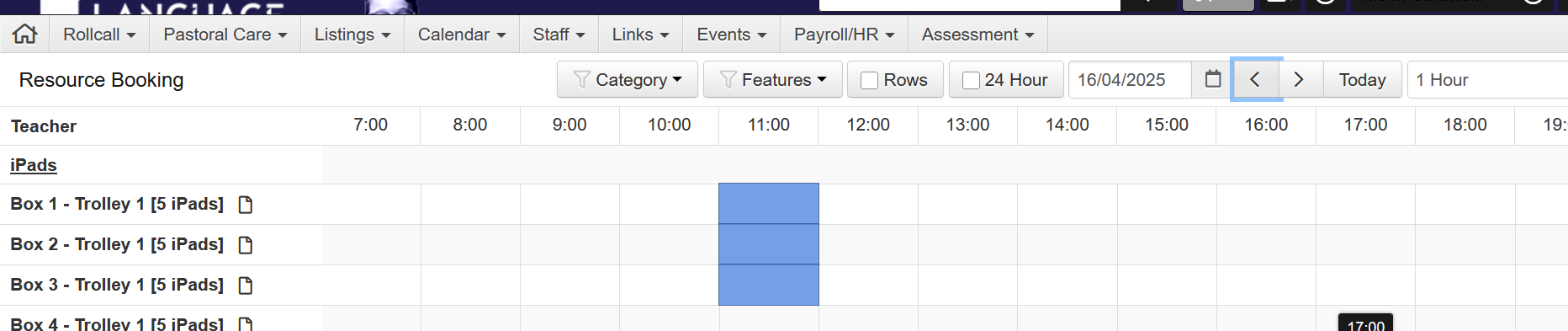
How it looks when something is booked out. It will be blocked out.
You can see all items and rooms you have booked listed in the teacher's kiosk in Staff > Resource Bookings
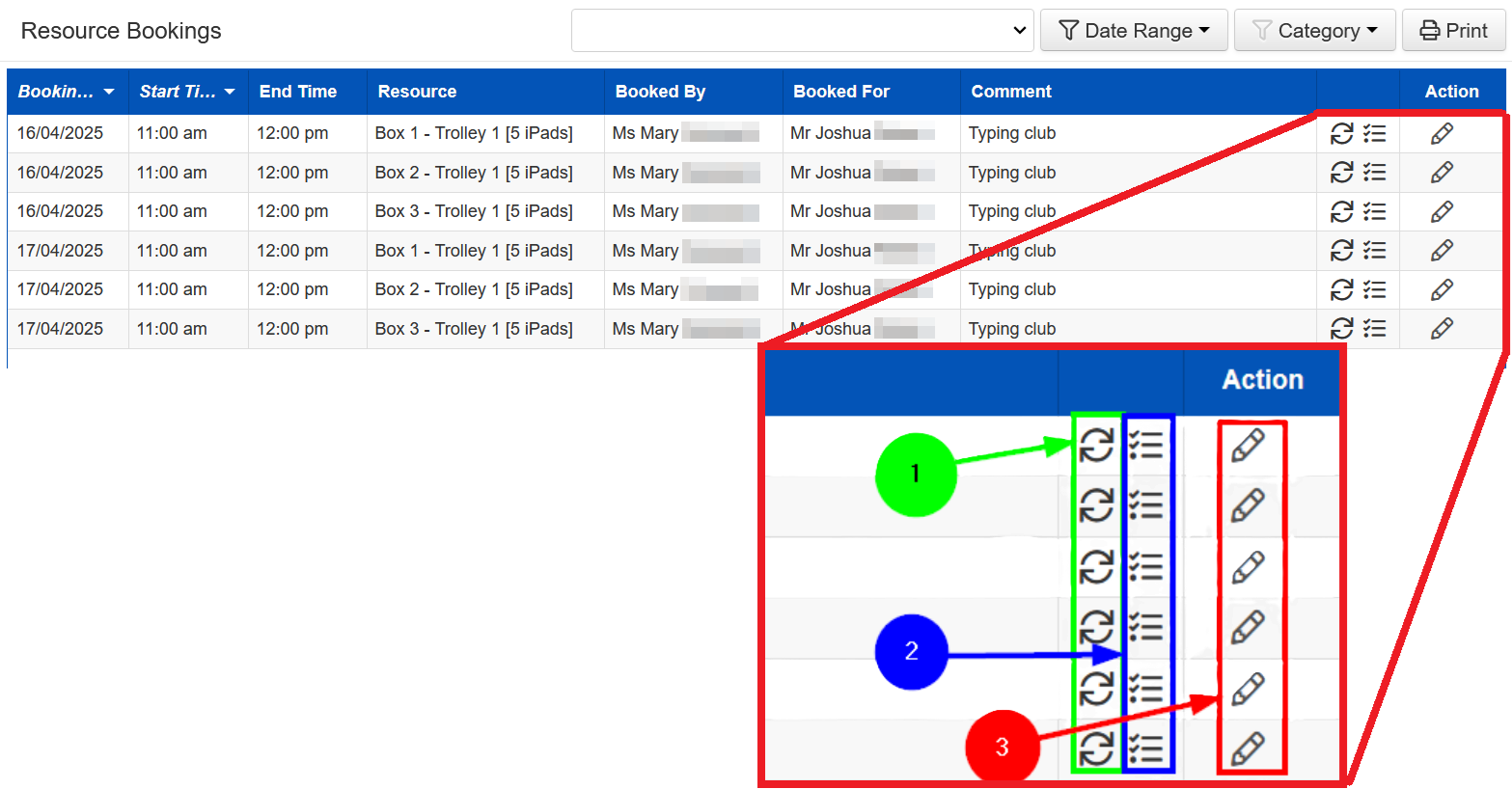
- This indicates its a recurring booking
- This indicates that its a multiple resource booking
- You can edit this booking within this list.