
- On the Student's PC, navigate to the folder that you want shared with you.
You can share singular files following these steps, but we will focus on just folders in this guide. - Right click on the folder and a menu will pop-up. Select the share icon.
Or just have the desired folder selected and click on the share icon on the top of window.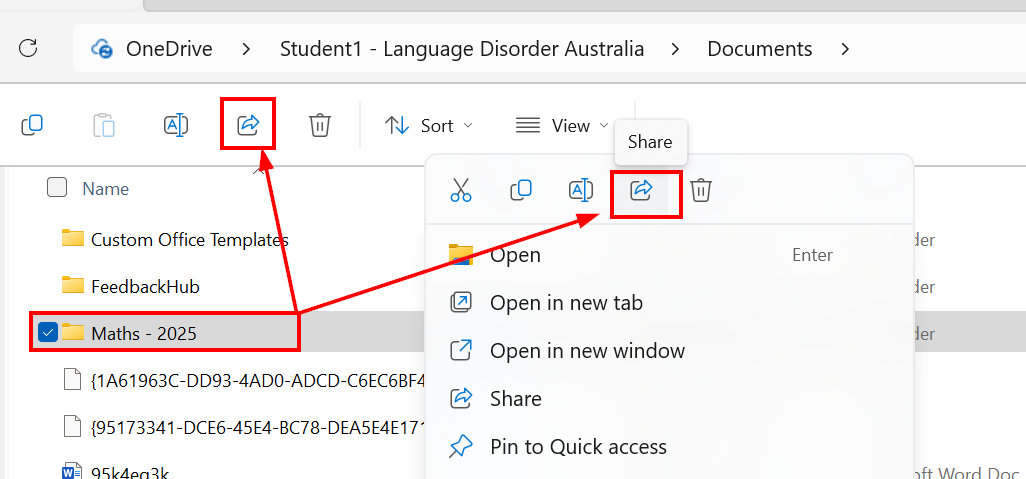
- A new window will open.
- Here you can add yourself. This is so an invitation to access this folder on your PC is sent to you.
Note - You can add multiple people who you want this folder shared with in one go. - Make sure you select Can edit. This will allow you to drop files or download copies of files from this folder.
- Press Send.
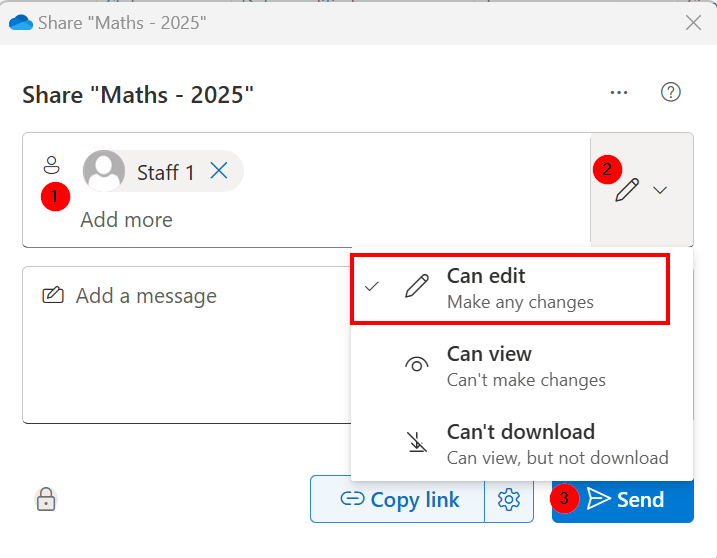
- Here you can add yourself. This is so an invitation to access this folder on your PC is sent to you.
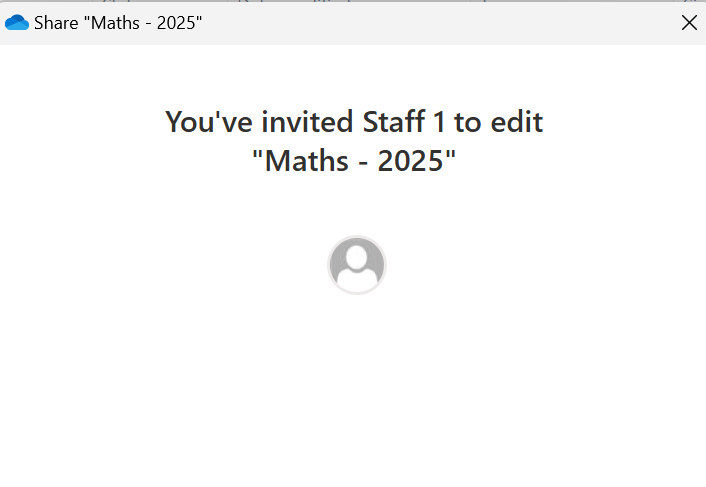
- A confirmation window will let you know this has been completed on the Student PC.
- In a few minutes, you will receive and email in your imbox letting you know that the student wants to share a folder with you. Press Open
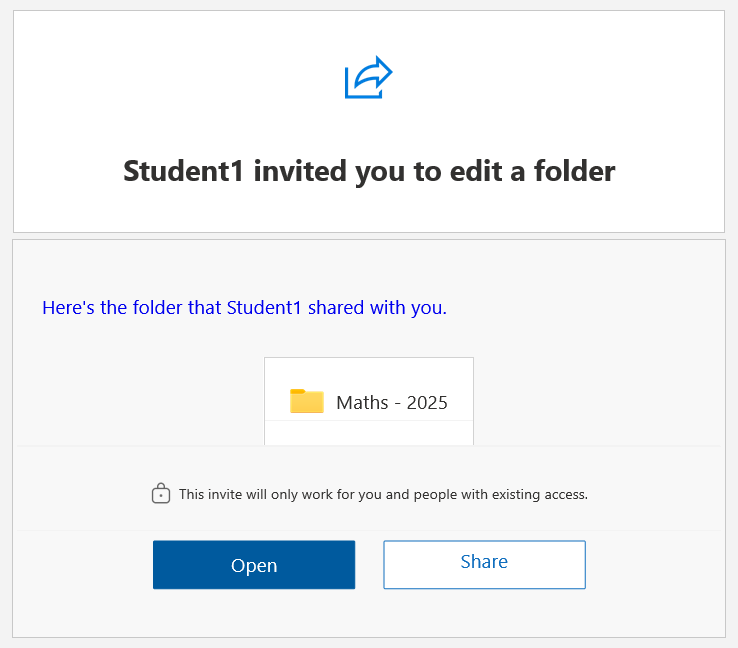
- An Edge window will open to the student's folder.
Click on Sync to make this accessible to you as a shortcut on your computer.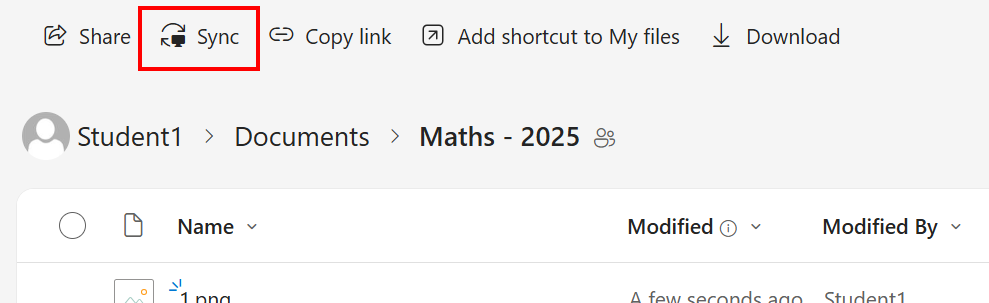
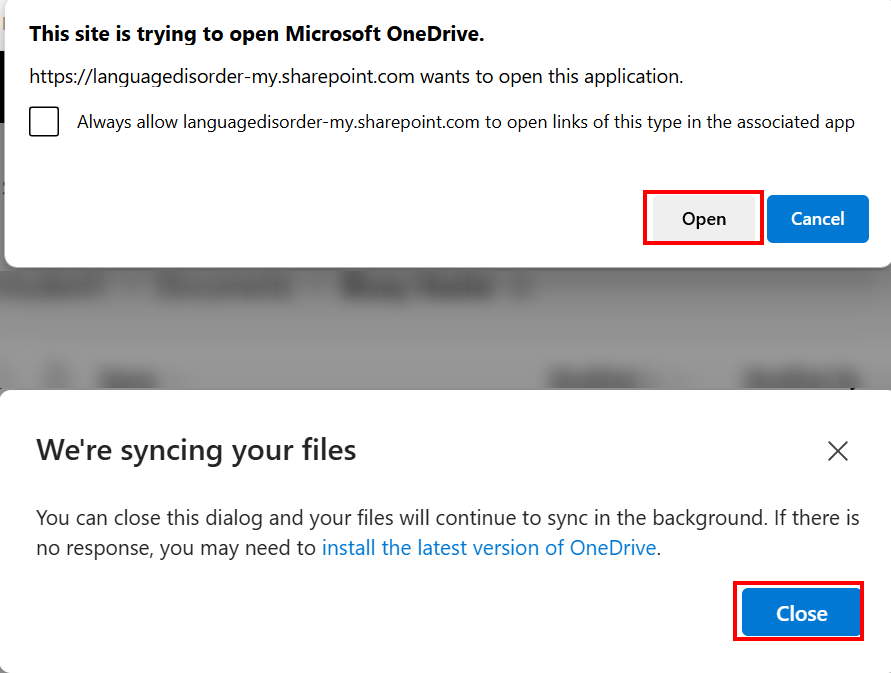
- Just press Open, and Close on these boxes when they appear.
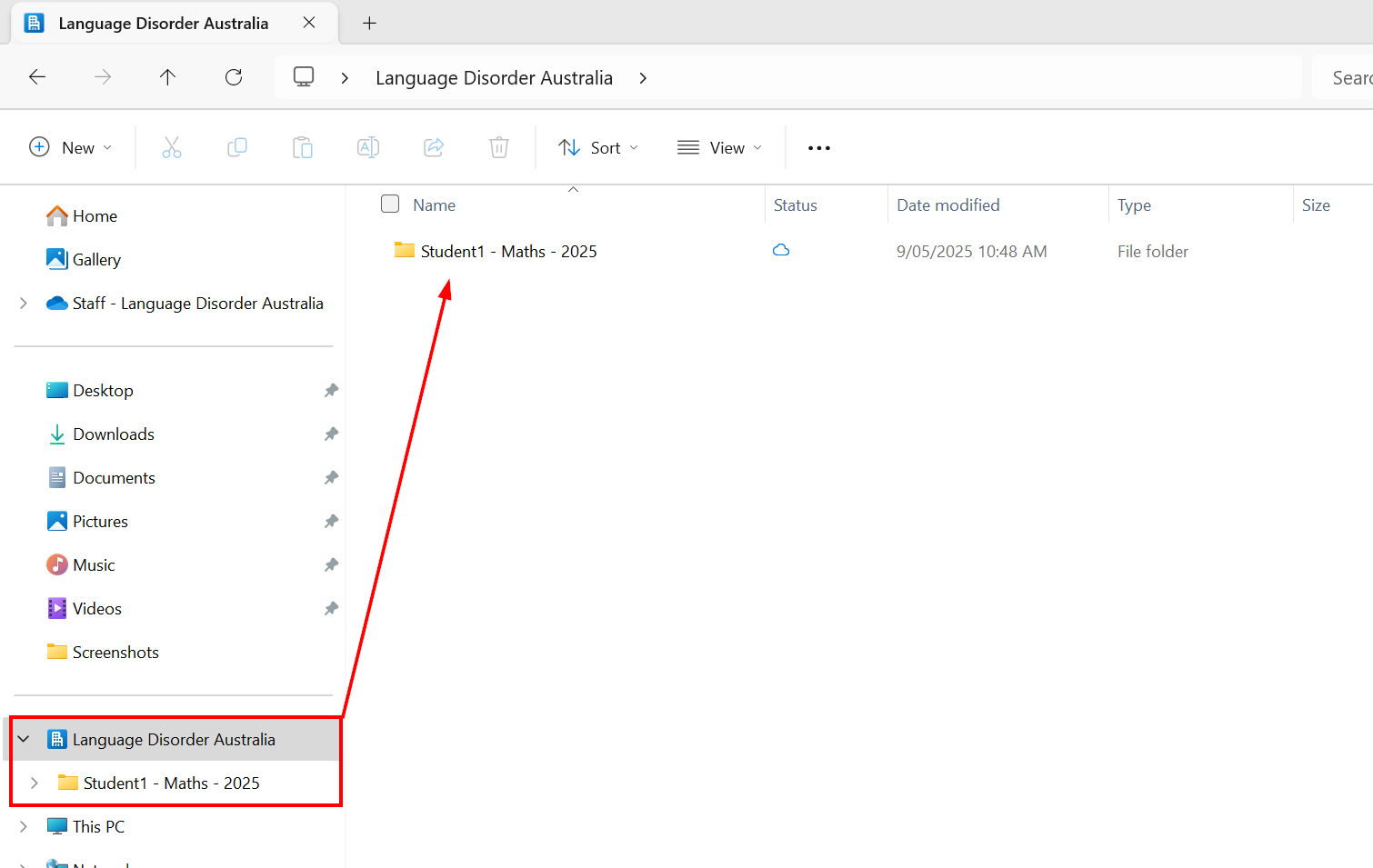
- You will see a direct link to these folders now on your files.
OneDrive - Sharing student folders with Teachers Print
Modified on: Fri, 9 May, 2025 at 11:16 AM
Did you find it helpful? Yes No
Send feedbackSorry we couldn't be helpful. Help us improve this article with your feedback.