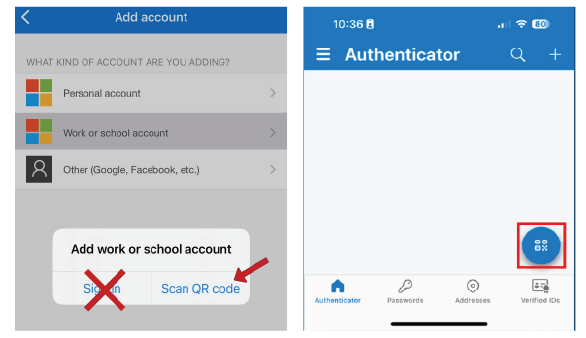
If you need to manually set up your Multifactor Authenticator, please follow the bellow steps.
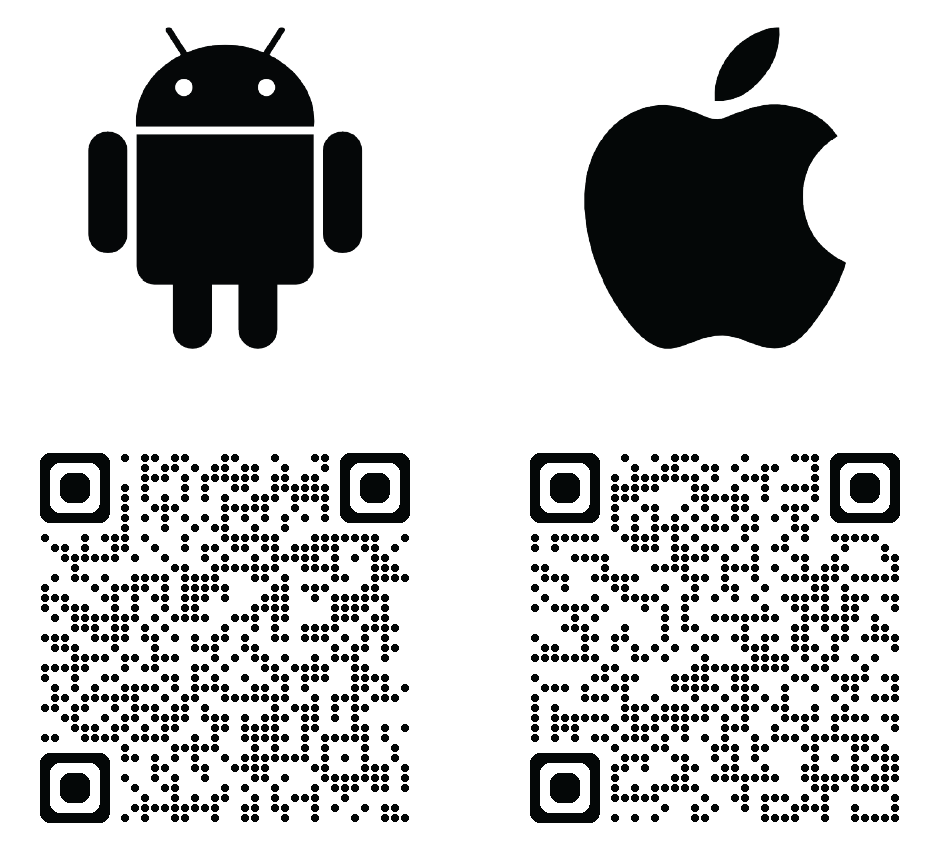
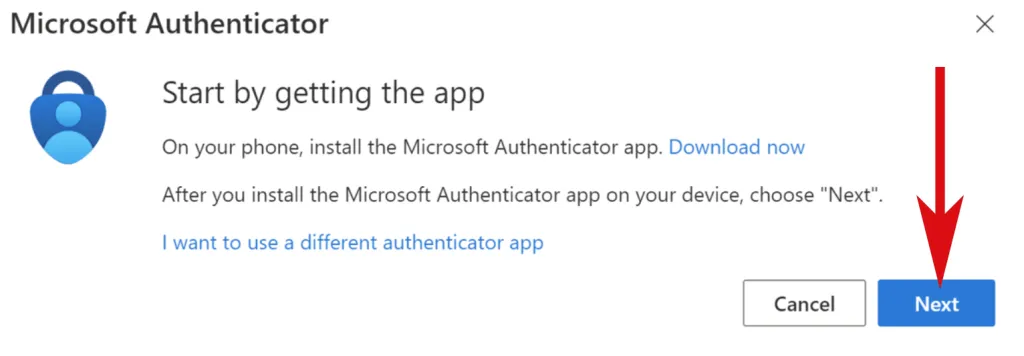
Please have the Authenticator App already installed on your phone.
You can download the app for your phone, from the corresponding QR codes below:
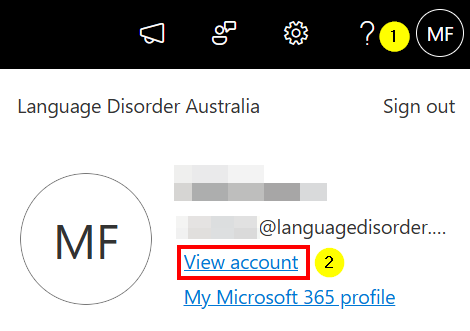
- Open an Edge window.
- In the top left-hand corner of the screen, click on your avatar, and drop-down menu will appear.
- Select "View Account".
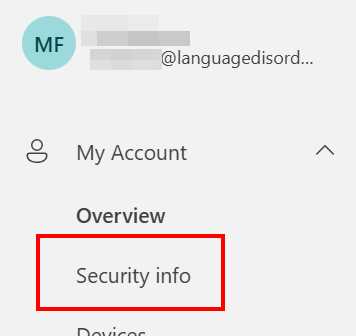
- On the left hand menu, select "Security Info"
- Click on "Add sign-in method"
- In the pop-up window add Microsoft Authenticator
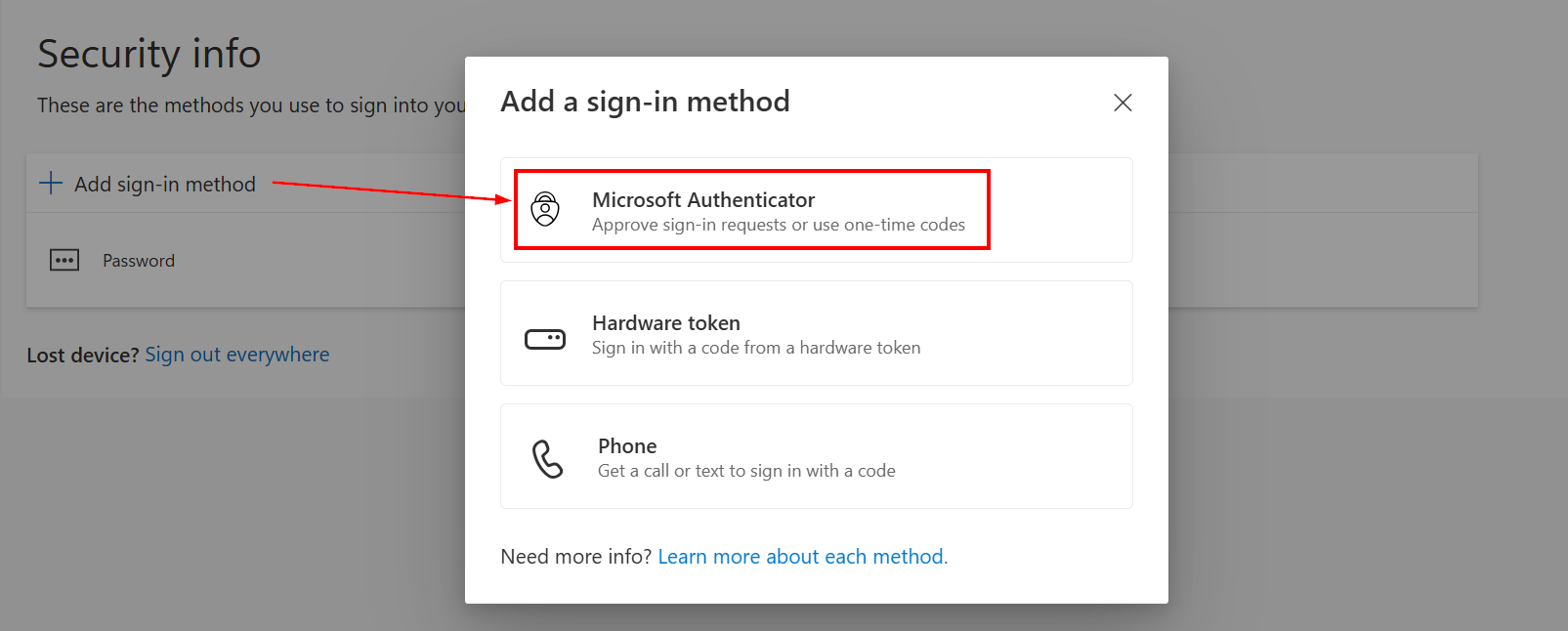
- In the pop-up window add Microsoft Authenticator
Open the Microsoft Authenticator app on your phone, tap the + button, select Work or school account.
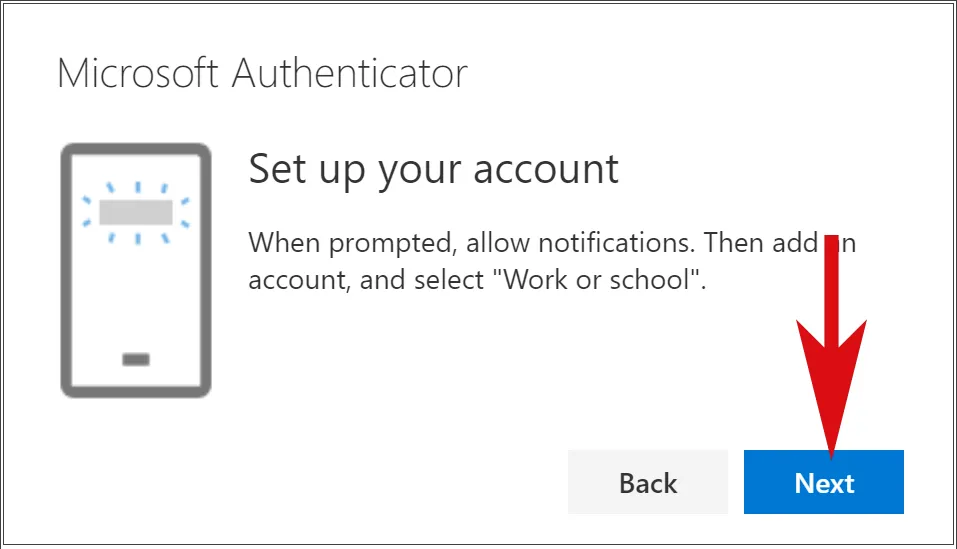
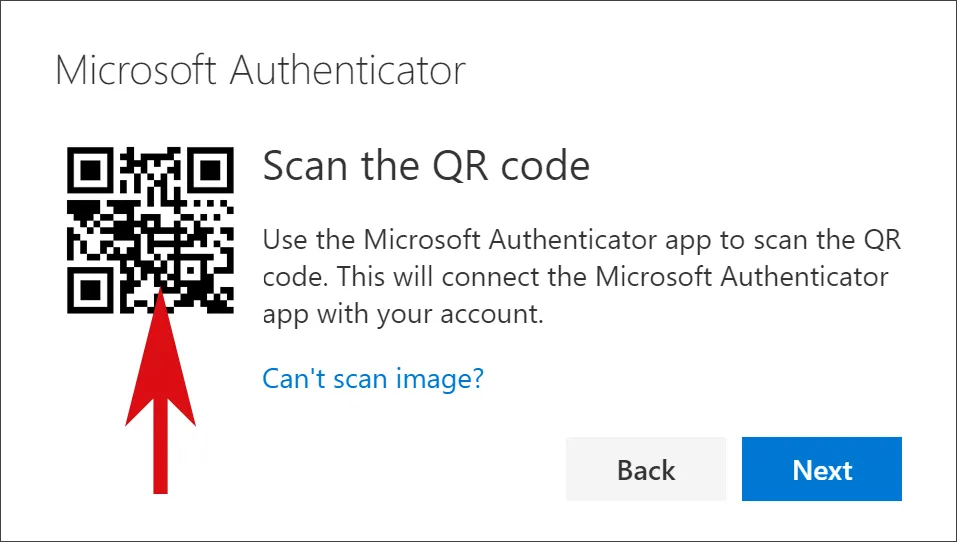
Scan the QR Code
Verify Setup
- Once you have scanned the code, hit Next, and you will be presented with a Number.
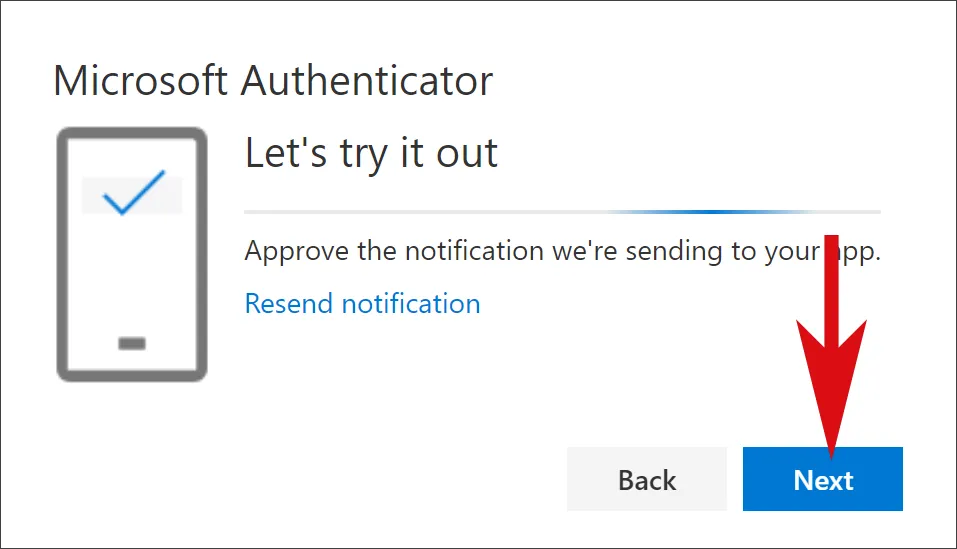
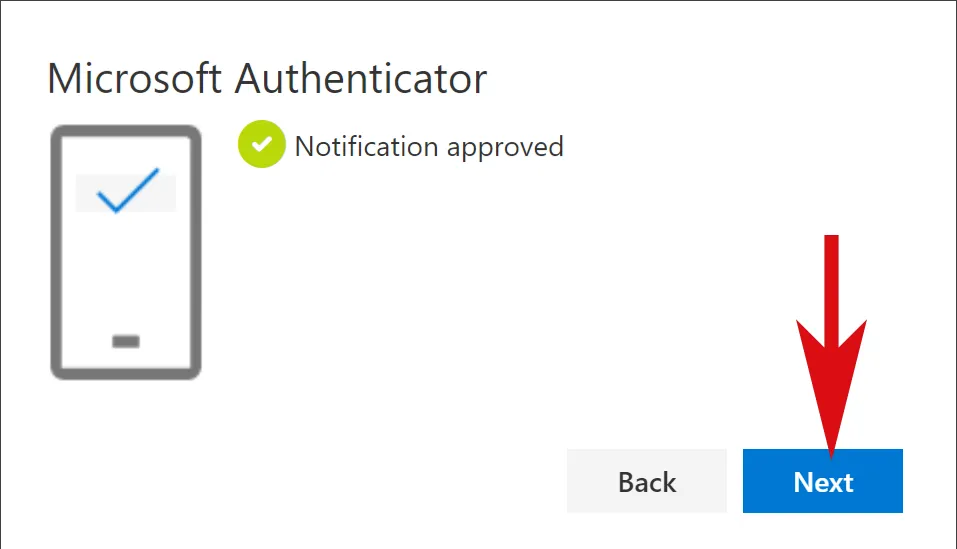
If set up correctly, you will get a push notification appear on your phone asking you to type the number that you see on screen.
This is to confirm your account has been linked the authenticator.
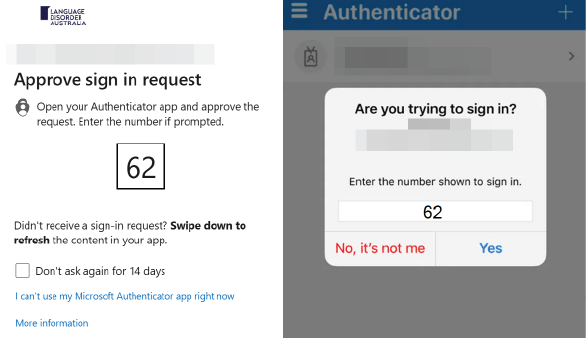
Once set up, you will see push notifications like below when accessing sensitive accounts or applications.
This will also appear when logging into your accounts on a new device or computer.
Extra:
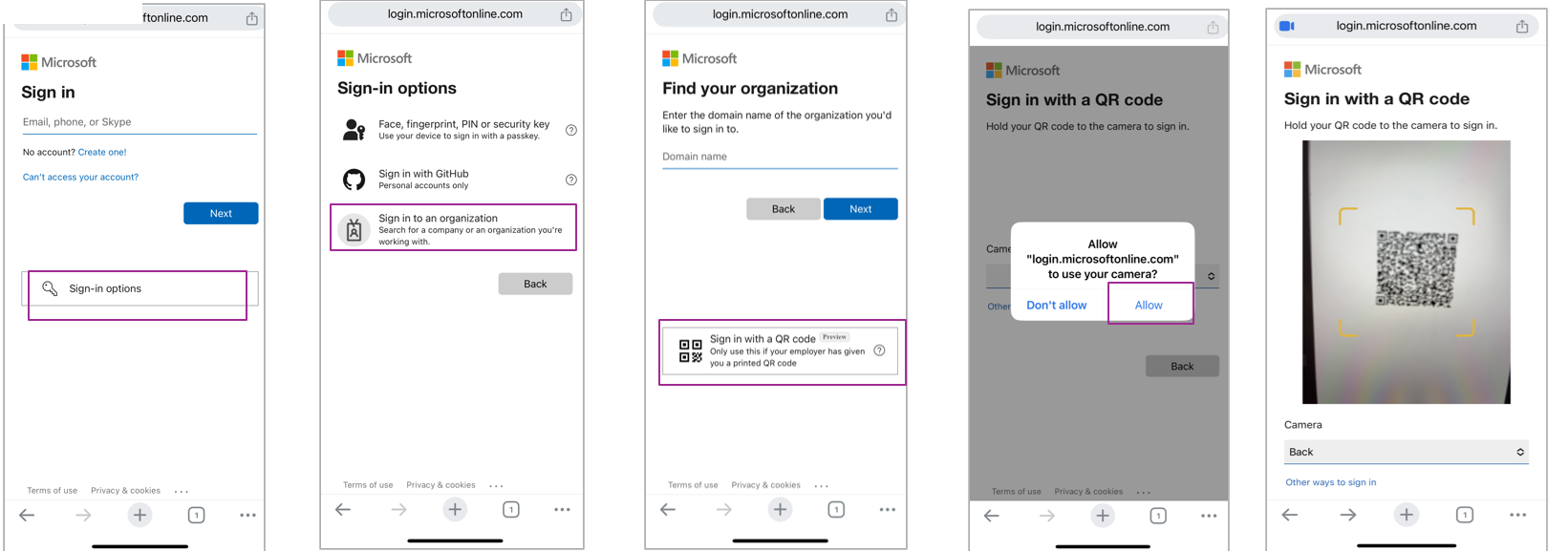
If the Sign in screen disappears, the below will help with set up.