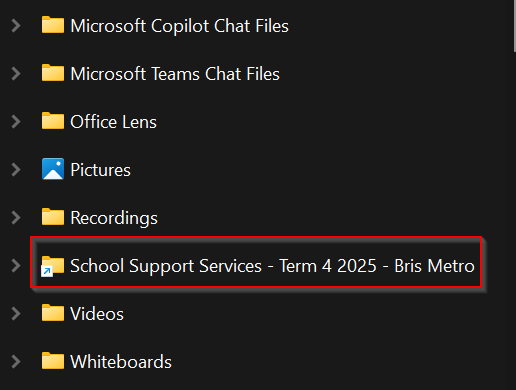
OneDrive slows or uses lots of CPU/RAM when it syncs very large parent folders.
Sync only the specific subfolders you need (e.g. Term 4), remove old shortcuts, and add SharePoint folders to OneDrive using Add shortcut to OneDrive.
If something goes missing, IT can restore from cloud backups.
TABLE OF CONTENTS
Part 1 - how to delete shortcuts
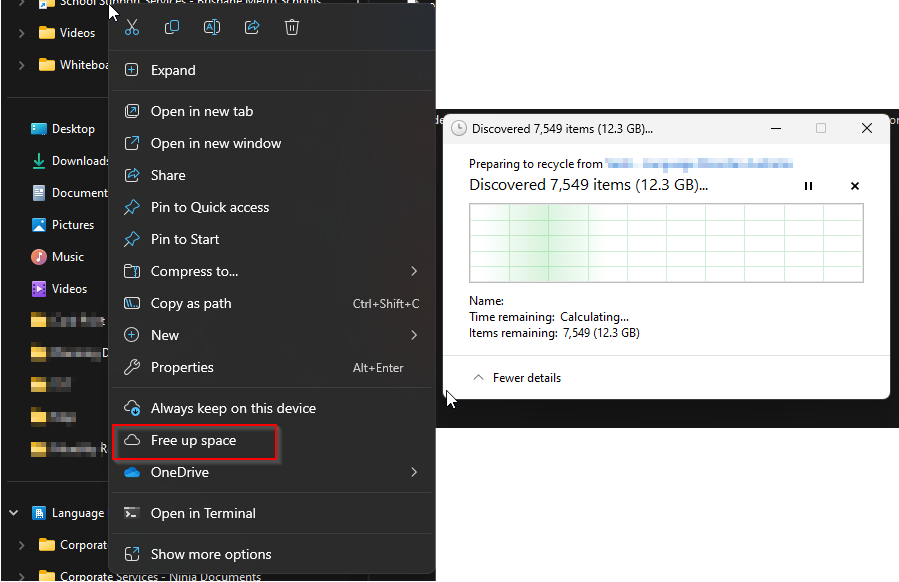
- Right-click on the shortcut and select Free up space. > Once the process finishes, you can safely delete the shortcut.
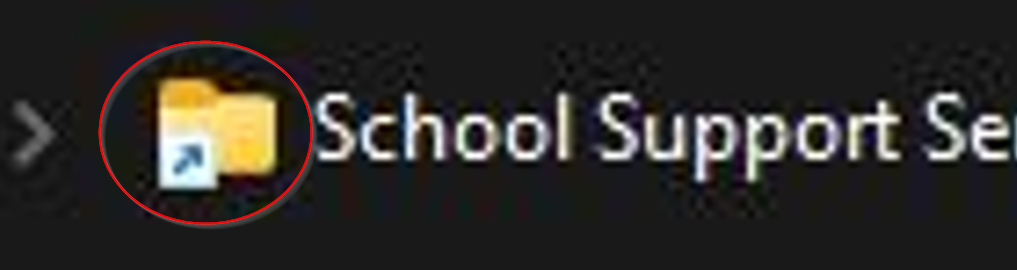
- Important: Make sure it’s really a shortcut (you’ll see a small arrow on the folder icon).
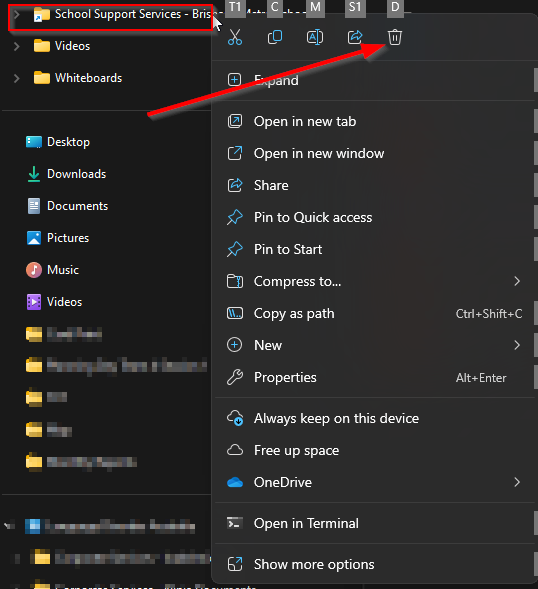
- Safely delete the Shortcut by right clicking the short cut and selecting the bin, located at the top of the drop-down menu.
 OneDrive shortcut:
 Note: Be patient, it can take up to 30 minutes for the shortcut to disappear, as OneDrive needs to check each file before removing it.
Sync only folders you need (e.g. Term 4).
To remove a shortcut: Right-click → Free up space → delete shortcut.
To add a folder from SharePoint: Open folder in SharePoint → Add shortcut to OneDrive.
Wait up to 30 minutes for OneDrive to finish checking/removing a shortcut.
Part 2 - To add a shortcut from SharePoint
- Select the folder you want. > Click Add shortcut to OneDrive.
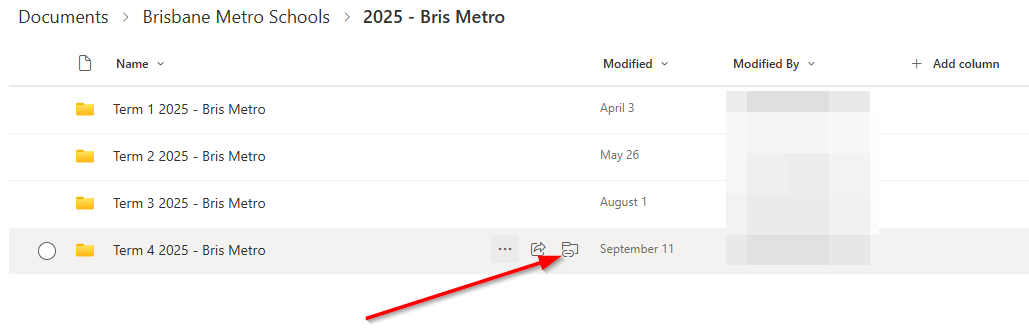
- The SharePoint folder will then show up in your File Explorer, ready to use.