
- Log into Teachers Kiosk. Hover over Events in the top Menu bar, and select Events and Payments.

- In the top right-hand corner of the screen, you can create a new event or clone an existing event.
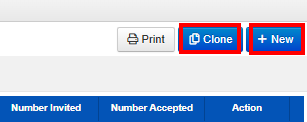
- Cloning an existing event will prefill the data for you. Allowing you to update the event with fresh details:
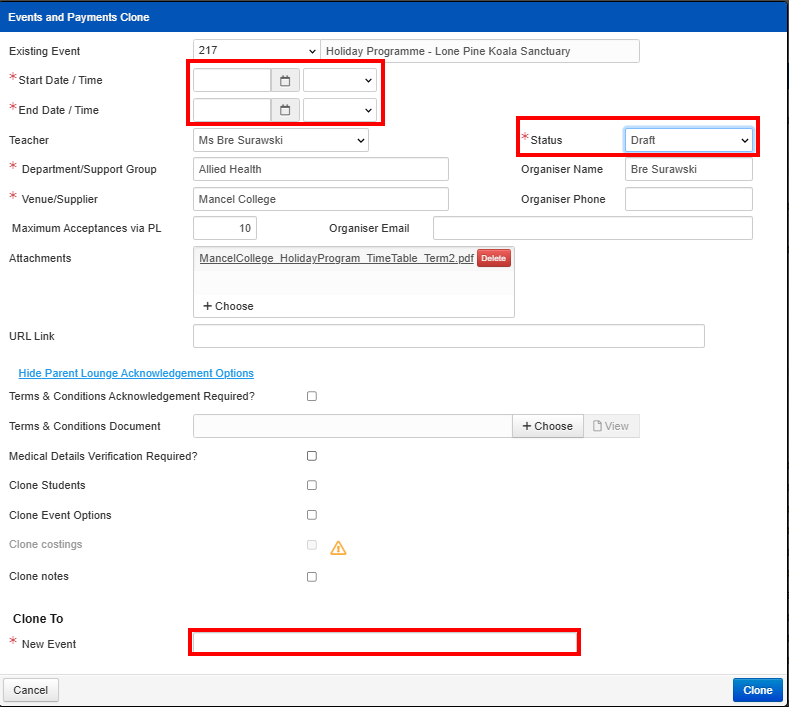
- Cloning an existing event will prefill the data for you. Allowing you to update the event with fresh details:
- With a new event, you will need to fill out the below.
- Once you click “submit new” it needs to be approved before parents of any students you assign will see the invitation in TASS Parent Lounge.
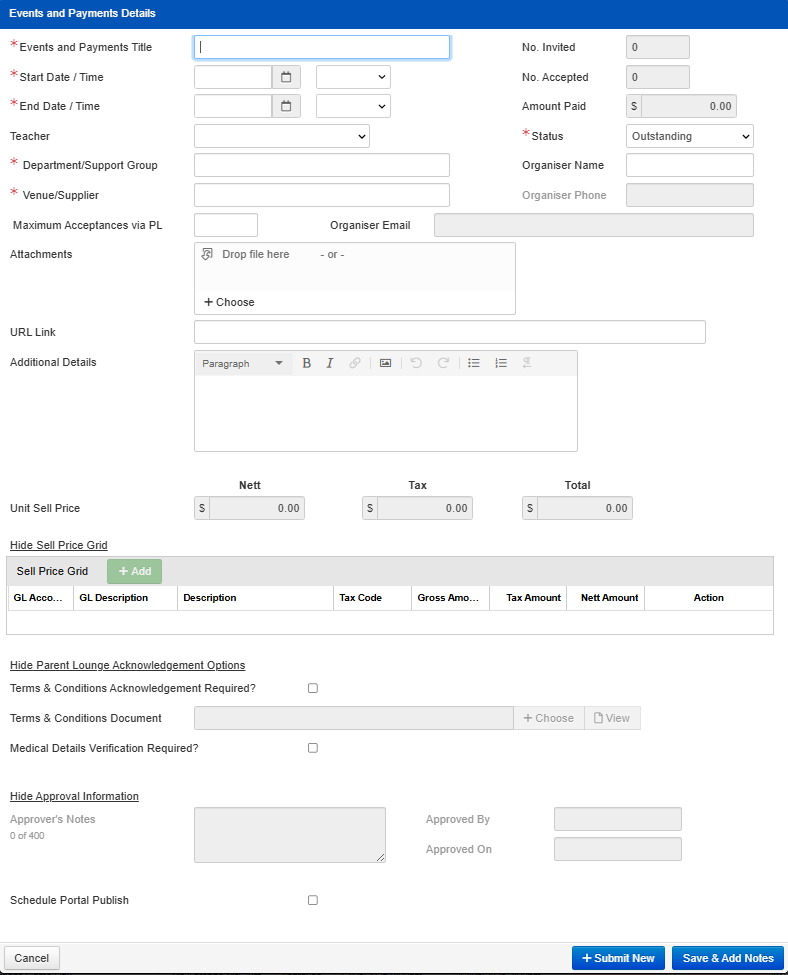
- Once you click “submit new” it needs to be approved before parents of any students you assign will see the invitation in TASS Parent Lounge.
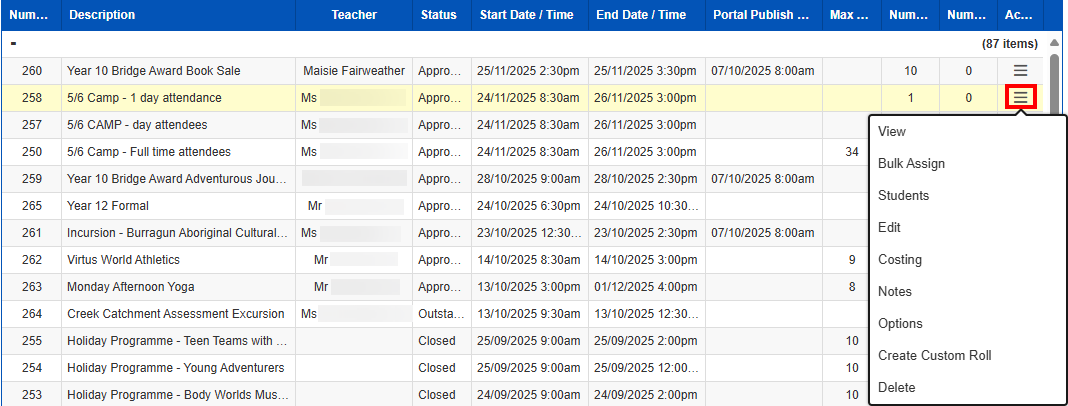
- Once you have created your event and it has been approved you can assign any group of students you wish and bulk email the group parents using the options under the 3 horizontal lines corresponding to your event under the Events Tab.
Teacher's Kiosk - How to create an excursion/event Print
Modified on: Fri, 26 Sep, 2025 at 11:29 AM
Did you find it helpful? Yes No
Send feedbackSorry we couldn't be helpful. Help us improve this article with your feedback.