
TABLE OF CONTENTS
- Singing into App
- Upload files
- Access your files
- Share files
- Create folders
- Delete files
- Restore deleted files
If you do not already have the OneDrive App, you can use the QR codes below to download the app from your phones respective store.

Singing into App
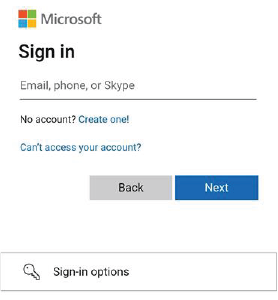
- Open the App and Sign in.
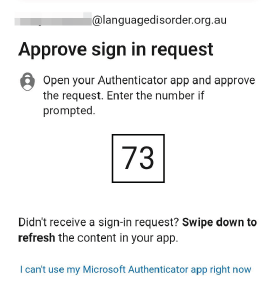
- You may be asked to Authenticate your account.
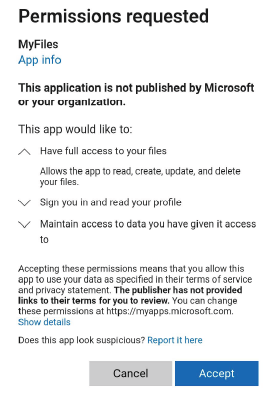
- Approve permission to access your files.
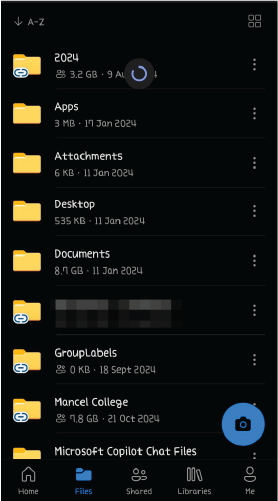
- You should now see your files. :)
Upload files
- Open the OneDrive app.
- Tap the (+) icon at the bottom of the screen.
- Select Upload.
- Choose the files you want to upload from your device.
Access your files
- Open the OneDrive app.
- Browse through your folders or use the search bar to find specific files.
- Tap on a file to open it
Share files
- Open the OneDrive app.
- Navigate to the file you want to share.
- Tap the three dots (...) next to the file name.
- Select Share.
- Choose how you want to share the file (e.g., via email, link, or other apps).
Create folders
- Open the OneDrive app.
- Tap the (+) icon at the bottom of the screen.
- Select Folder.
- Enter a name for the folder and select OK.
Delete files
- Open the OneDrive app.
- Navigate to the file you want to delete.
- Tap the three dots (...) next to the file name.
- Select Delete.
Restore deleted files
- Open the OneDrive app.
- Tap the Me icon at the upper left of the screen.
- Select Recycle bin.
- Tap the three dots (...) next to the file you want to restore.
- Select Restore.