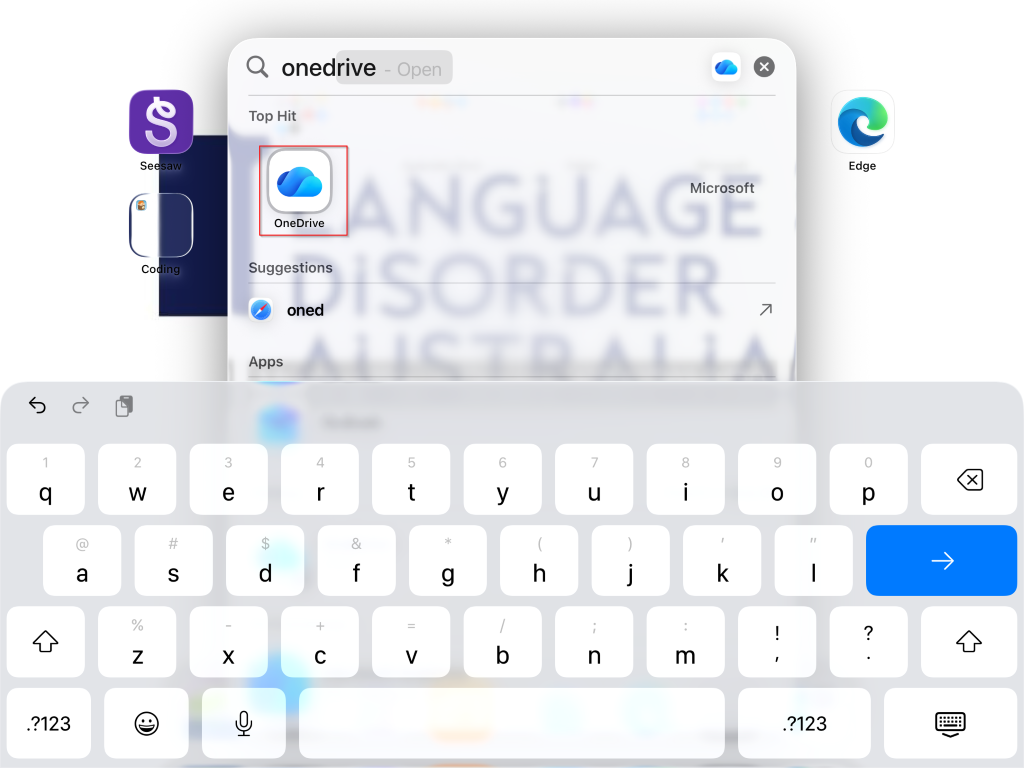
1. Swipe down on iPad home screen to search for OneDrive. Tap on the icon.
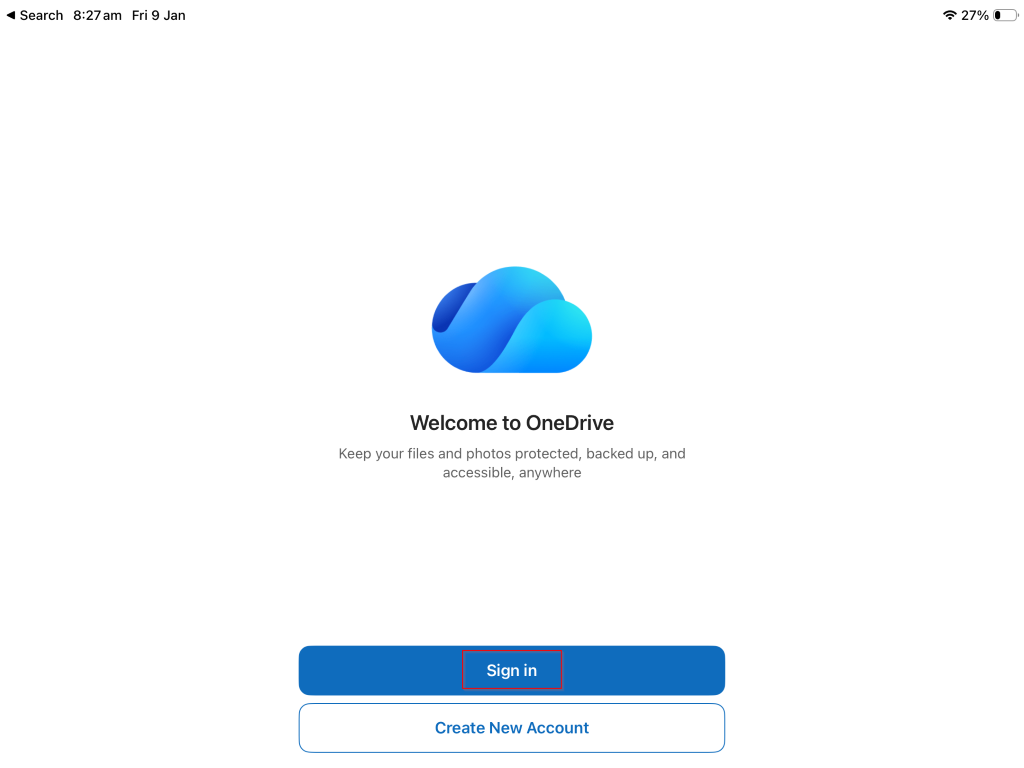
2. Tap Sign in.
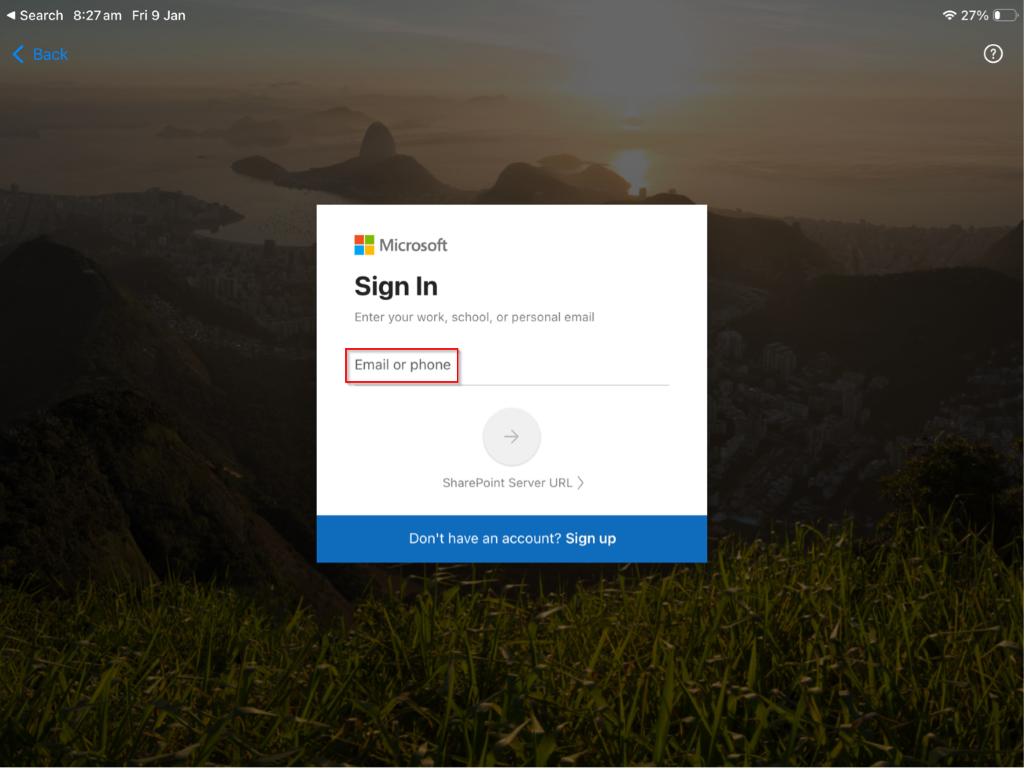
3. Enter your work email and password.
4. Press the '+' icon.
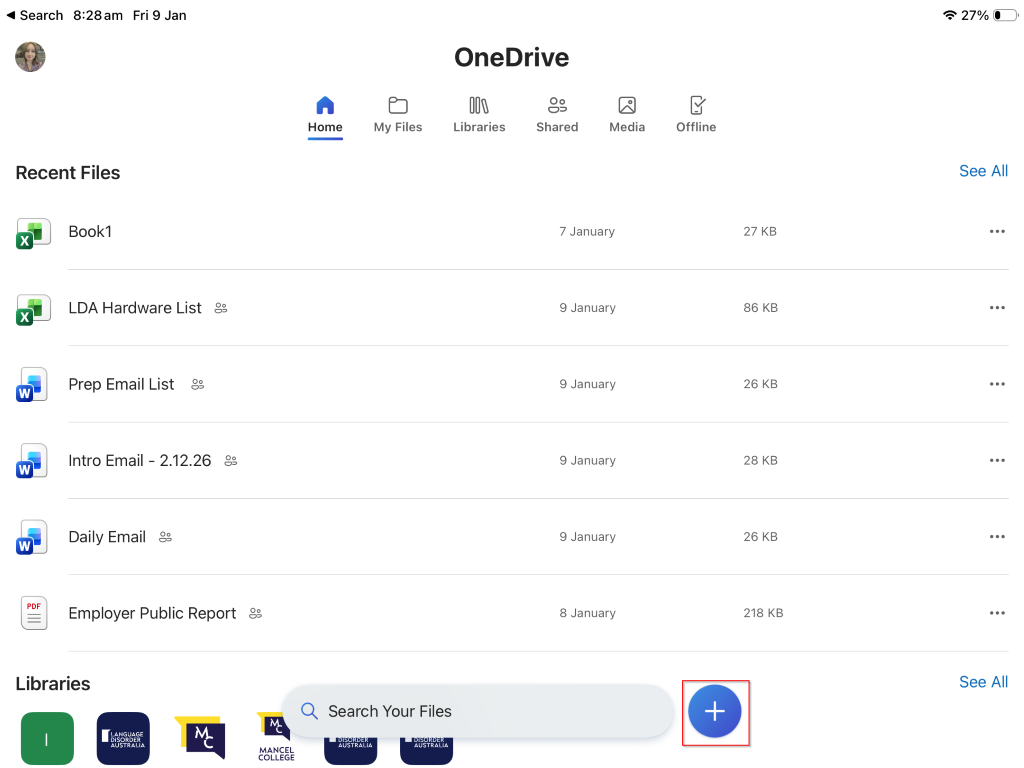
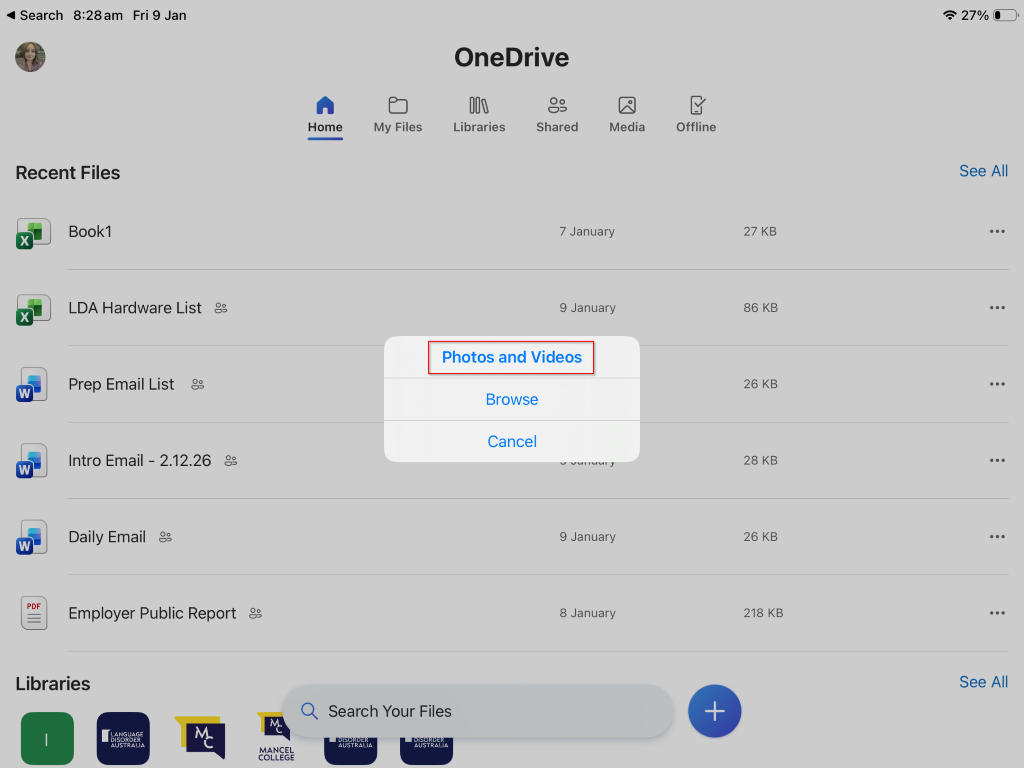
5. Select to upload from 'Photos and Videos'.
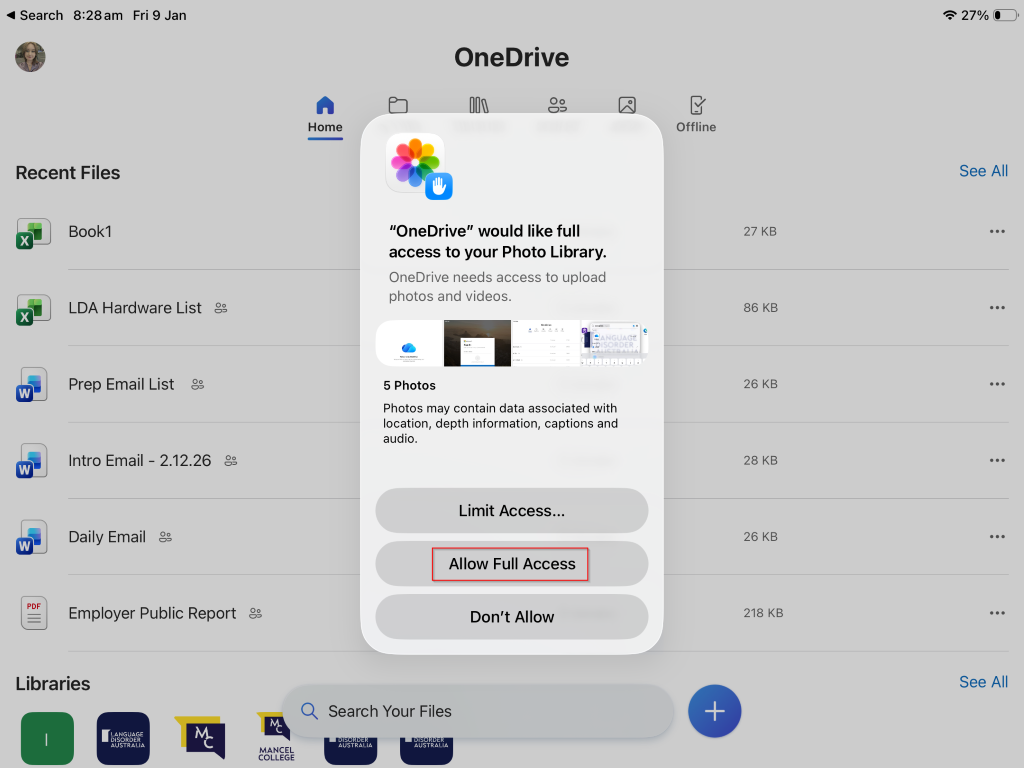
6. Tap 'Allow Full Access'.
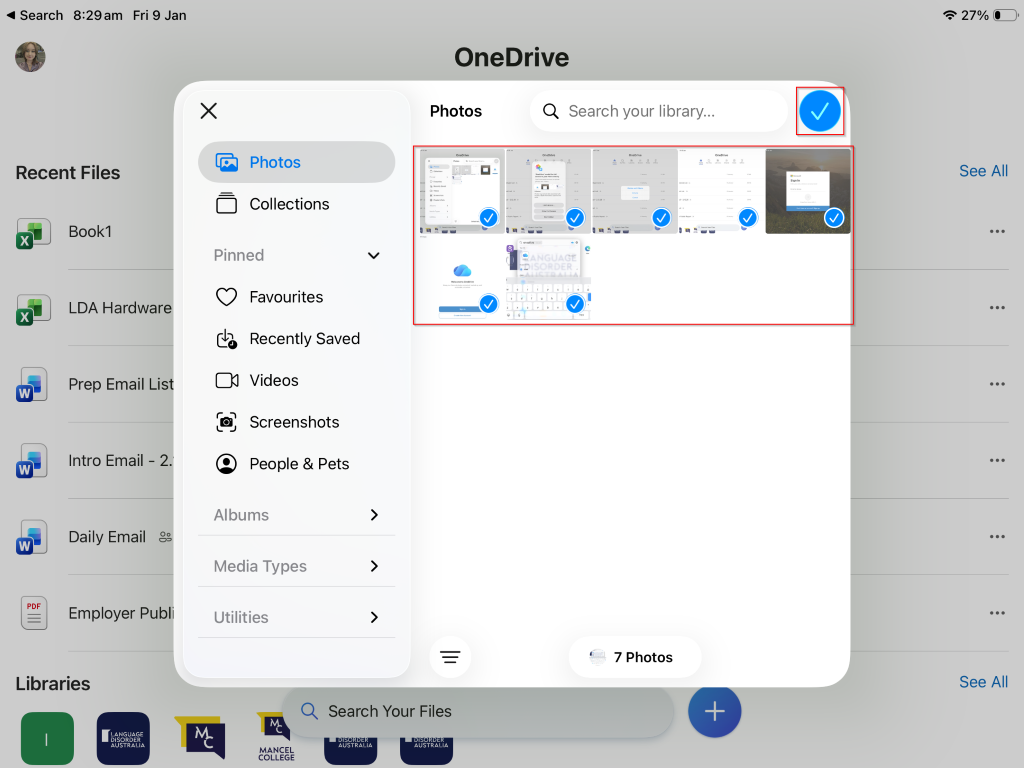
7. Select all of the photos you would like to upload. Then press the tick.
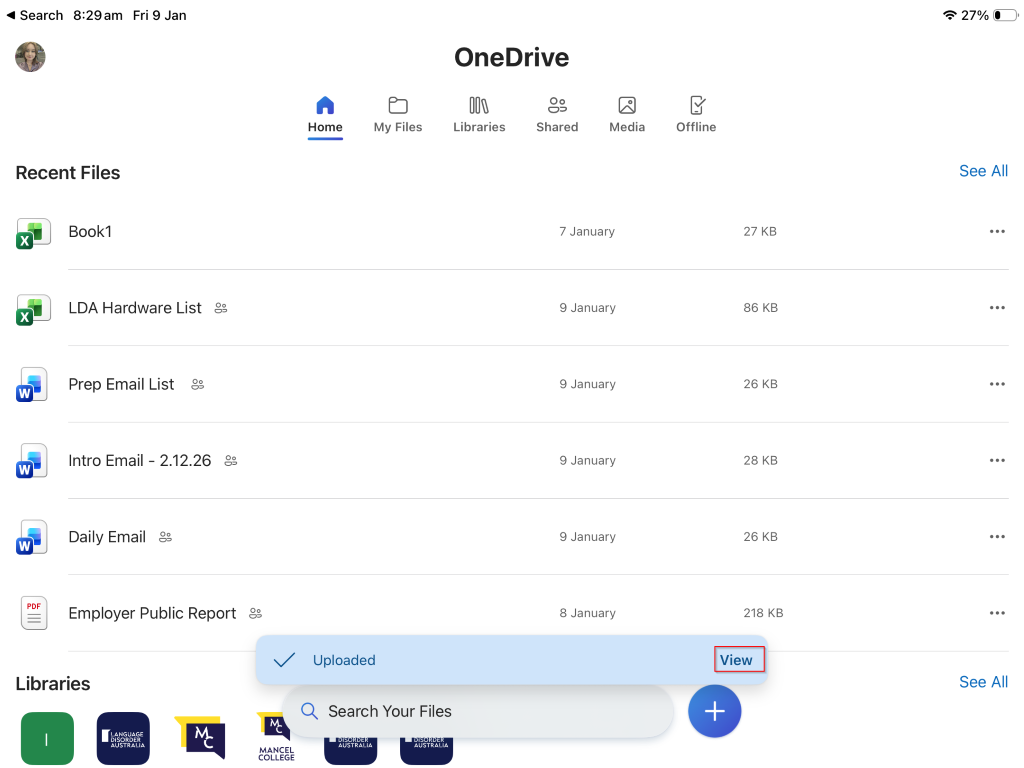
8. Press the 'View' icon to see where the photos are stored.
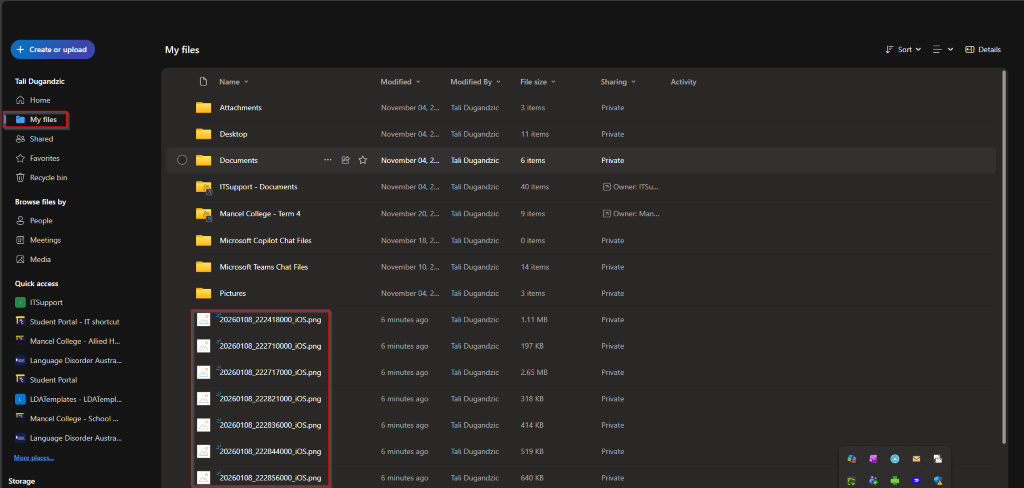
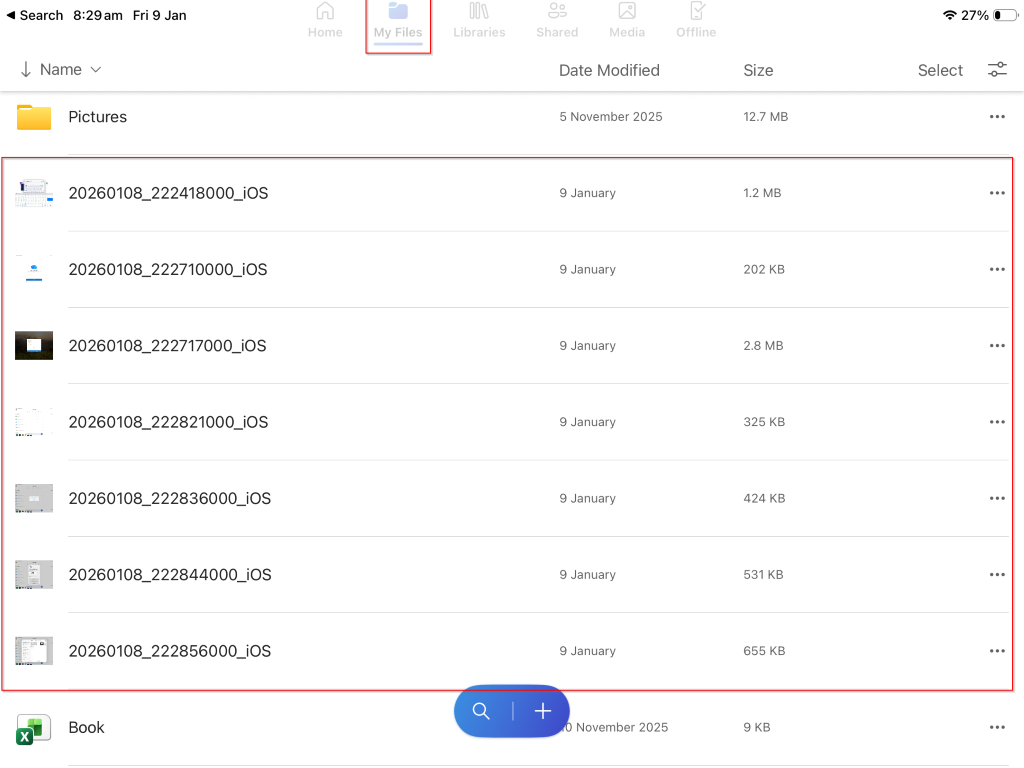
9. Or, go to 'My Files' to see the images you uploaded.
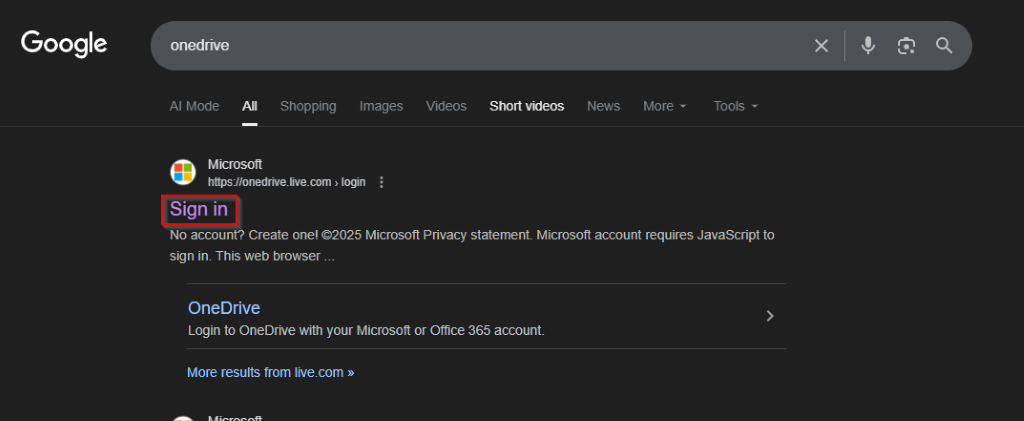
10. On your laptop, to access the photos, search 'OneDrive' and click 'Sign in'.
11. Go to 'My Files' to view or download the photos.