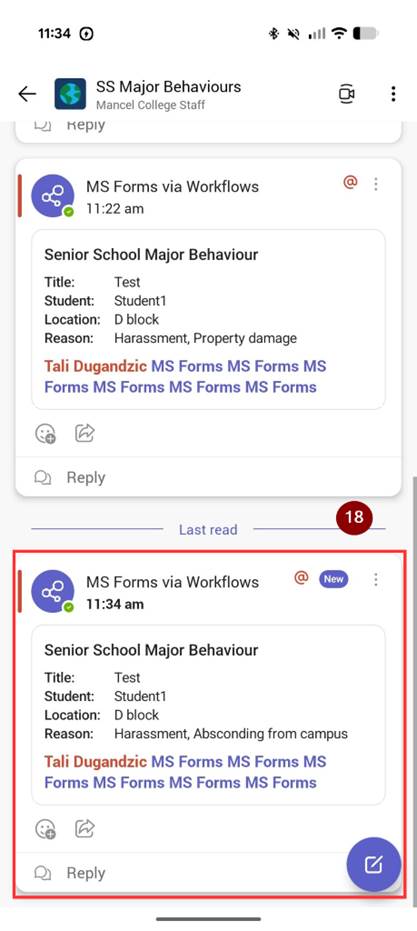
1. In the teams app, tap 'Teams'.
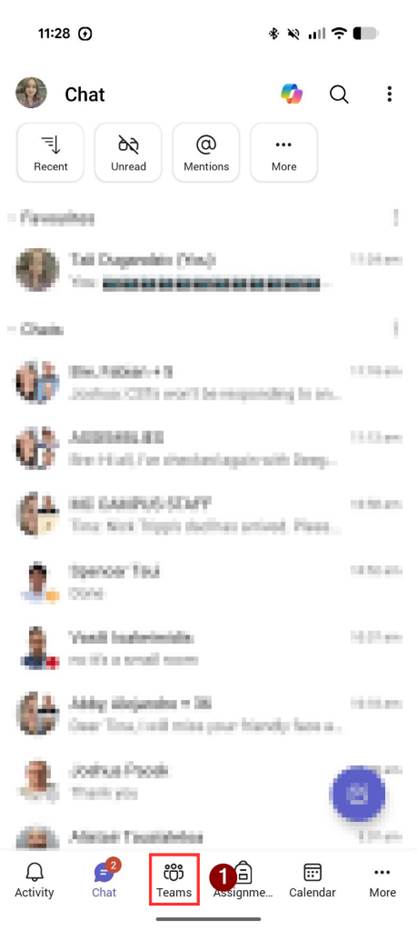
2. Tap 'Mancel College Staff'
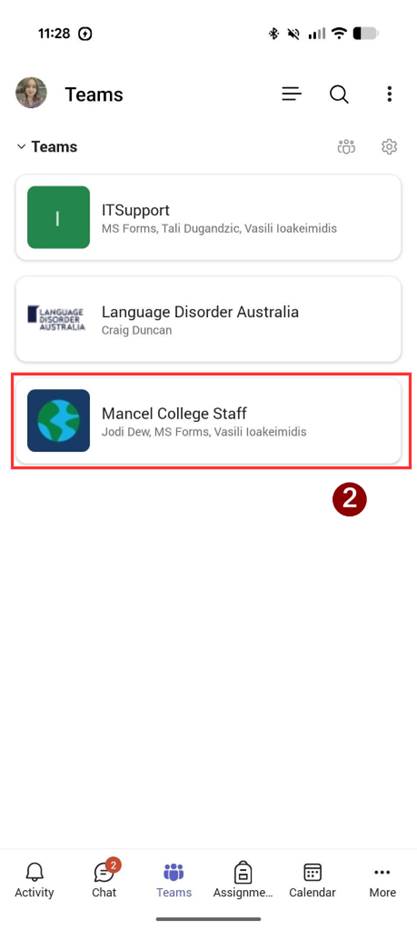
3. Under 'Channels', choose if you would like to submit Major Behaviours for junior school (JS) or senior school (SS).
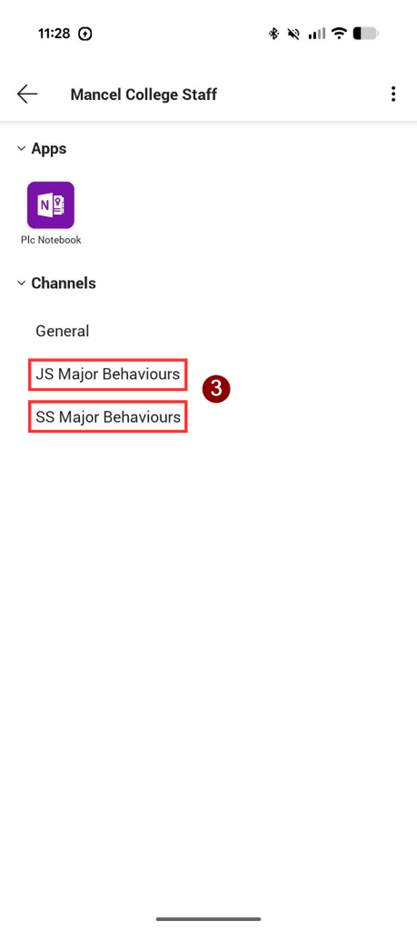
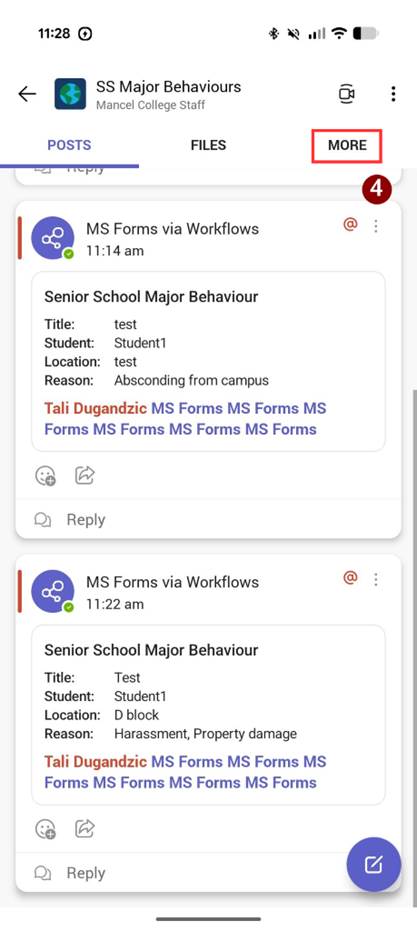
- When you click on JS Major Behaviours or SS Major Behaviours, it will open to the 'posts' tab, which will show recent submissions. To make a major behaviour post, tap 'more'.
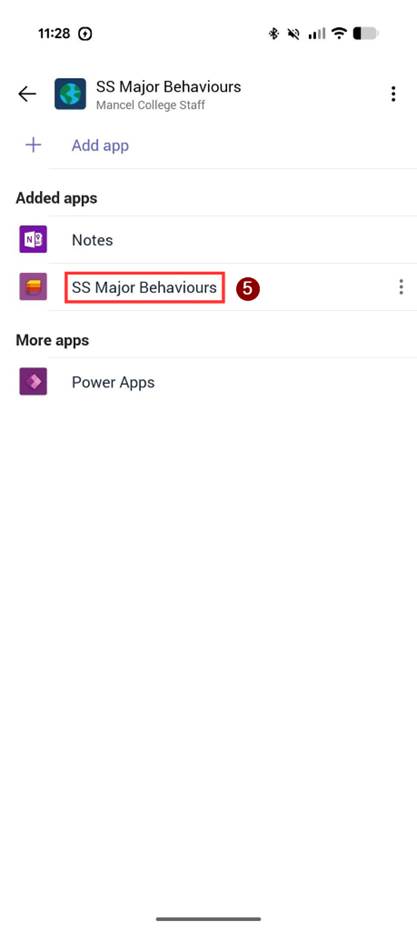
5. Tap 'SS Major Behaviours/JS Major Behaviours'.
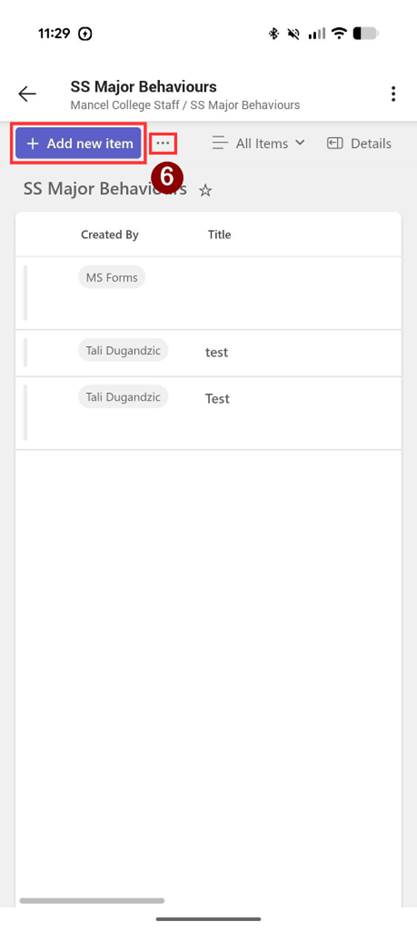
6. If 'Add new item' button is hidden, tap the 3 dots (⋯), then tap 'Add new item'.
7. The 'Title' field is optional.
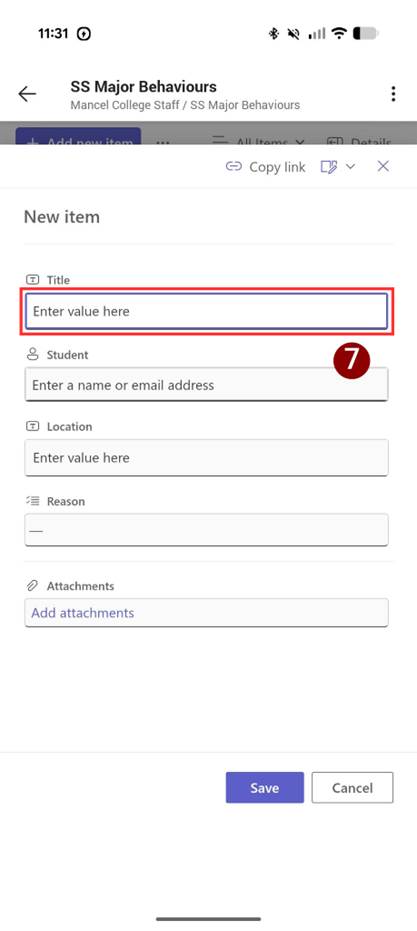
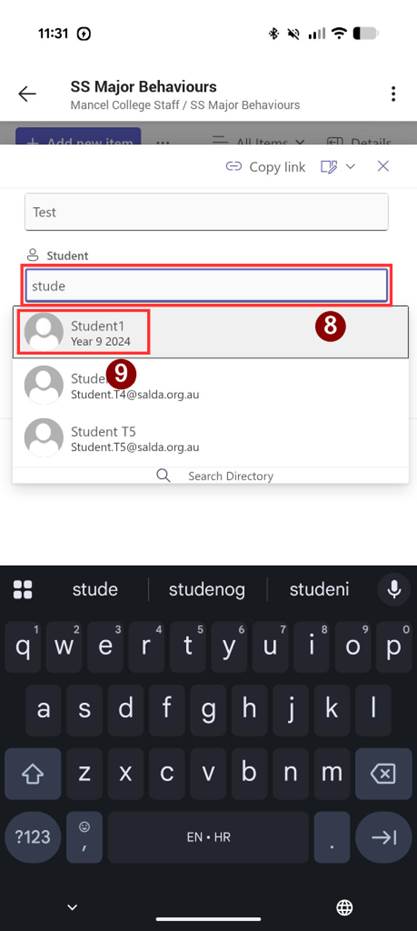
8. Tap the 'Student' field. If the submission is for junior school, type the student's full name.
9. If it is for senior school, start typing the student's name, and select it from the dropdown.
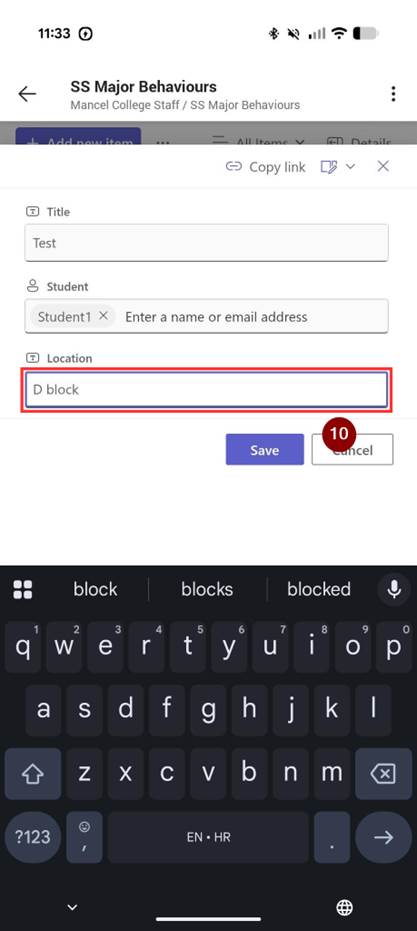
10. Tap on the 'Location' field. Type the location of the Major Behaviour. You can enter any text in this box, e.g. D12, D block, outside of D block.
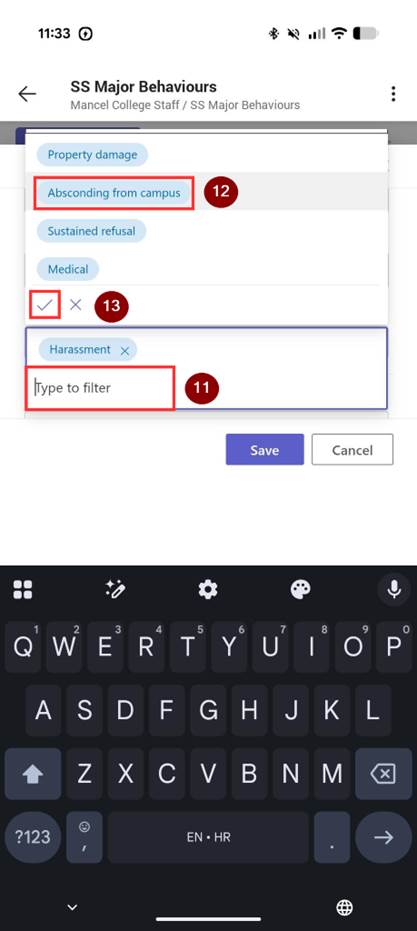
11. Tap the 'Reason' field.
12. Tap the reason/s for the Major Behaviour.
13. Tap the tick icon.
14. Tap 'save'.
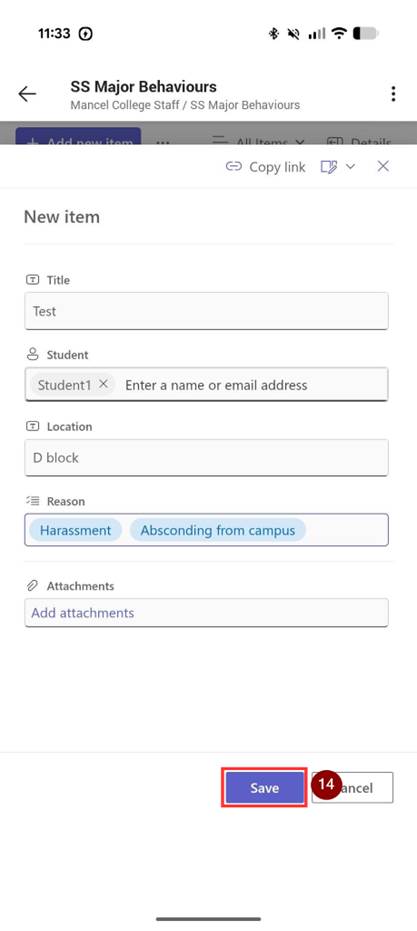
15. You have now submitted your Major Behaviour post. If you'd like to view it, press the back icon.
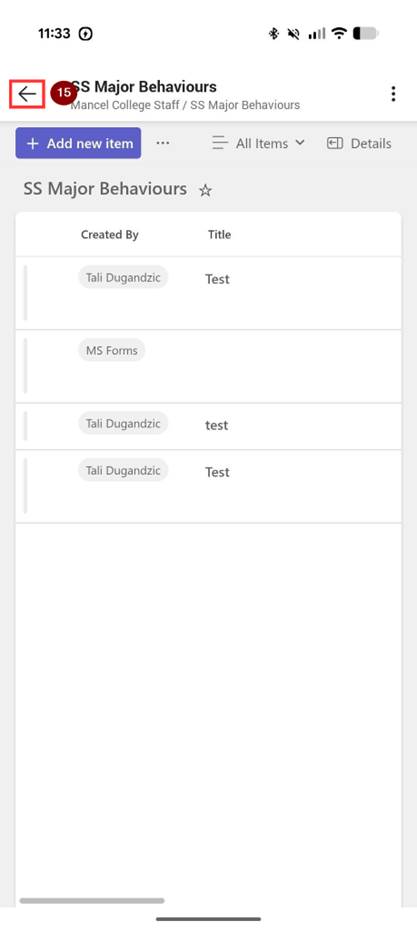
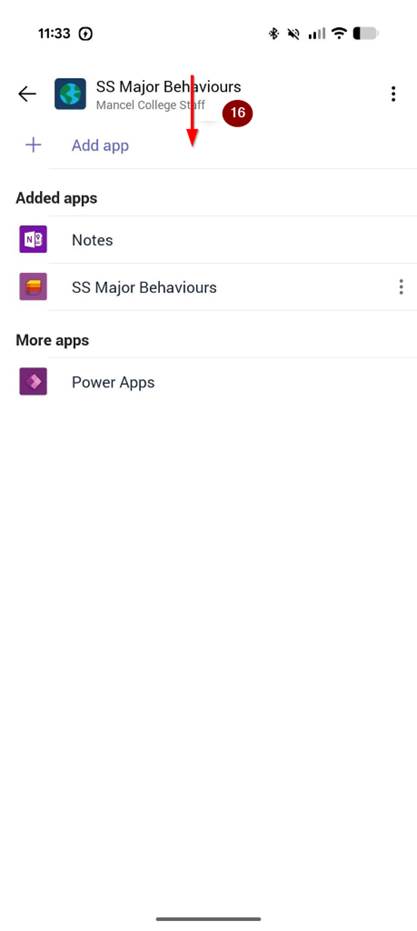
16. If the menu at the top is missing, swipe down.
17. Tap 'posts'.
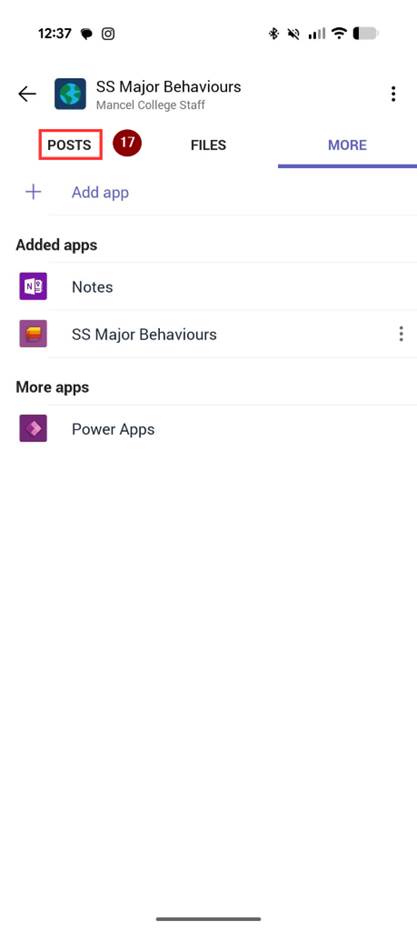
18. Your post will show at the bottom of the screen and will notify the CLT.